
How Termilly works.
From installing it to every keyboard shortcut. New here? Start with Install and First run, or see what it can do on the Features page.
Get started
Install
Termilly runs on 64-bit Windows 10 (1903 or later), Windows 11, Debian and Ubuntu.
From a terminal
One command downloads the newest version, checks its SHA-256 and installs it. In Windows PowerShell:
irm https://termilly.com/install.ps1 | iexIf your security software blocks that, use Command Prompt:
curl.exe -fsSLo install.cmd https://termilly.com/install.cmd && .\install.cmd && del install.cmdOn Debian and Ubuntu:
curl -fsSL https://termilly.com/install.sh | shOn Windows it keeps your last install options. On Linux, apt asks for your sudo password. The scripts are short, so read them first if you like: install.ps1, install.cmd, install.sh.
Windows
Both installers give you the same Termilly:
- TermillySetup-<version>.exe (about 270 MB) works offline.
- TermillySetup-<version>-online.exe (about 10 MB) downloads .NET 10 and WebView2 from Microsoft if you need them.
Setup installs .NET and WebView2 only if missing, and checks Microsoft signed them. Installing .NET asks for administrator permission once.
Under Install for, pick Just me (no admin needed, goes in %LOCALAPPDATA%\Programs\Termilly) or All users (Program Files, needs admin).
Under Options, choose what you want:
- Start menu and Desktop shortcuts
- "Open in Termilly" in Explorer
- termilly command in cmd and PowerShell (see The termilly command)
- Claude Code integration (see Coding agents)
- Keep shells running at sign-in (see Restoring sessions)
To update, press Update in the title bar (see Updates) or run a newer installer. If an update fails, your old version comes back.
To install from a script:
TermillySetup.exe --quiet [--all-users] [--dir PATH] [--desktop] [--no-path] [--sign-in] [--offline]
                          [--no-start-menu] [--no-explorer] [--no-agent]
TermillySetup.exe --uninstall --quiet [--remove-data]
Exit codes: 0 done, 1 failed, 740 needs admin. The log is in %TEMP%\TermillySetup-*\setup.log.
To uninstall, use Apps & features. Your settings, workspaces and history in %LOCALAPPDATA%\Termilly stay unless you clear Keep my settings, workspaces and history (or pass --remove-data).
Linux (.deb)
sudo apt install ./termilly_<version>_amd64.deb- apt installs what it needs:
dotnet-runtime-10.0, WebKitGTK 4.1, GTK 3, libnotify and libsecret. Before Ubuntu 24.04, get .NET from Microsoft's package repository. - Recommended: OpenSSH, notify-send, xdg-utils, lspci and a keyring.
- Termilly goes in
/opt/termilly. Folders get Open With › Termilly in your file manager. sudo apt remove termillykeeps your data in~/.local/share/Termilly.
Not on Linux yet: the drop-down window, global shortcuts, clicking a notification to open its terminal, the dock badge, zsh and fish shell integration, and COM ports.
First run
Termilly opens with one workspace and one terminal in your default shell.
Save your recovery code
Termilly encrypts your workspaces and history on your PC, unlocked by your Windows account or, on Linux, a key file only you can read. The first time, it shows a Save your recovery code dialog.
- Press Copy and keep the code off this PC, like in a password manager.
- Press I've saved it.
If an admin resets your Windows password, or the Linux key file is lost, this code is the only way back into your history. You can see it again in Settings › Privacy & security. See Encryption and recovery code.
The tour
A short tour runs once. To see it again, run Take the tour from the command palette (CtrlShiftF) or with Take the tour in Settings › About.
The window
Titlebar
From left to right:
- Search terminals, history and output (CtrlShiftF). See Search.
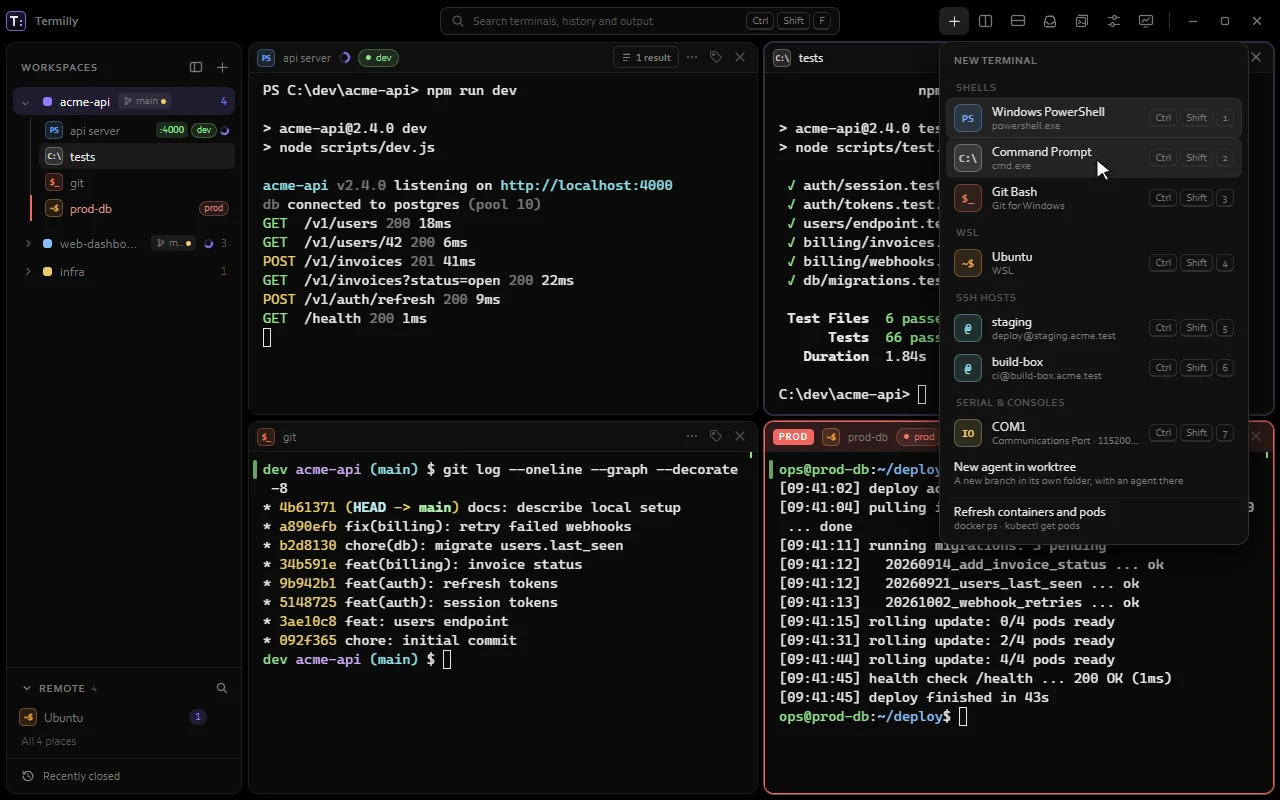
- + (New terminal): every shell, SSH host, container and port Termilly found, plus New agent in worktree and Refresh containers and pods.
- Split right and Split down.
- Notification center, with a count of terminals waiting for you. See Notification center.
- Snippets. See Snippets.
- Settings (Ctrl,).
- Minimise, maximise and close. Double-click the titlebar to maximise.
The titlebar also shows when you're broadcasting input and when an update is out.
Sidebar
The sidebar lists your workspaces and their terminals. Below them:
- Remote: SSH hosts, WSL, containers, pods and serial ports. See Remote.
- Captured lines: lines your triggers kept. See Alerts and triggers.
- Recently closed: terminals you can reopen.
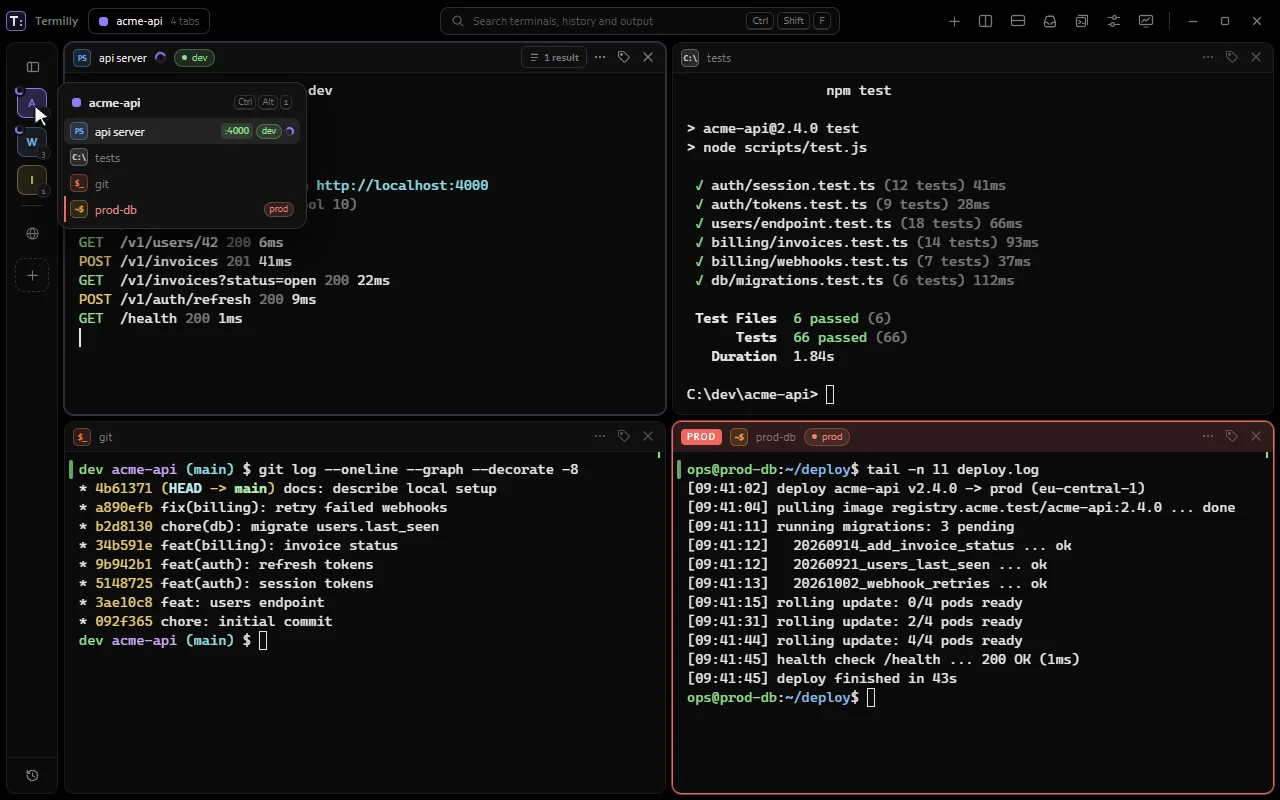
Drag the edge to resize it, double-click it to reset.CtrlShiftB hides it, leaving a thin rail of workspace tiles or nothing. Choose in Settings › Workspaces › Closed sidebar shows. Hover a tile to see its terminals.
Panes
Each terminal is a pane. Its header shows the name (double-click to rename) and tags. On the right:
- Stop, while an agent works.
- The Claude chip: model, context used and tokens. Click it for more.
- Results: pull requests, running apps and pushes from commands here.
- N changed: files Claude changed. See Change preview.
- The terminal menu, note, Tags and Close terminal.
Right-click the header for the terminal menu: Rename, Tags, Note, Move to workspace, Record, Log to file, Alert me, Broadcast input, Run snippet, Scripts and agents, the Terminal ID, Close and more.
A green or red mark at the prompt shows how each command ended. Hover it for the exit code and time. A spinner by the title means a command is still running.
Terminals
Workspaces
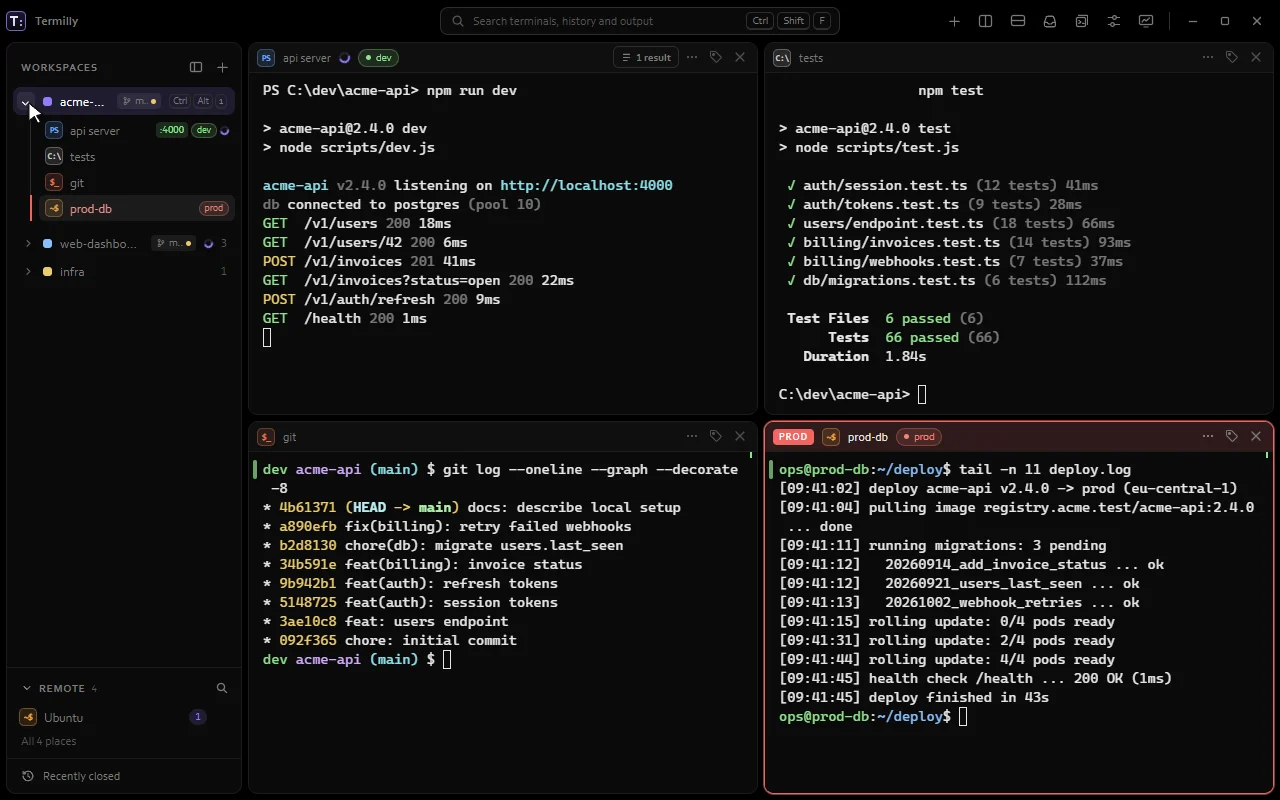
A workspace holds one project's terminals and their layout. You see one at a time; the rest keep running.
Make a workspace
Press + next to Workspaces in the sidebar, or CtrlShiftN. New workspace asks for:
- Name and Colour.
- Start folder: where its terminals start (empty means your user folder).
- Start with: A terminal (pick the shell) or Nothing.
If the folder has a .termilly.yml, Termilly offers to open its layout.
Quicker: press CtrlShiftO (Go to) and type part of a folder name. If no workspace has that folder, you get a new one there.
Switching
- Click a workspace in the sidebar.
- CtrlAlt1 to 9 jump to workspace 1 to 9.
- CtrlTab and CtrlShiftTab go to the next and previous.
Workspace menu
Right-click a workspace for New terminal here, Rename (or double-click), Note, Export layout, Stop all agents here, Move terminals to tabs, Colour and Close workspace.
Move terminals to tabs stacks all its terminals as tabs. Drag a tab out to split it off again.
Closing a workspace with terminals asks first. Turn that off in Settings › Workspaces › Confirm before closing a workspace.
Ports
Ports your programs listen on (like :3000) show on the terminal's row. Click one to open it in your browser. Turn them off in Settings › Workspaces › Project status. For the branch, see Branch in the sidebar.
Terminals and shells
CtrlShiftT opens your default shell (Settings › Terminal › Default shell). The + button lists everything else, and the first nine get CtrlShift1 to 9.
Detected shells
On Windows, Termilly finds:
- PowerShell (PowerShell 7,
pwsh.exe) if installed, otherwise Windows PowerShell. - Command Prompt.
- Git Bash, if Git for Windows is installed.
- Each WSL distribution.
On Linux, you get your login shell first, then the shells in /etc/shells.
Your own profiles
A profile turns any command into a terminal, like docker exec -it or kubectl exec -it. In Settings › Terminal › Your profiles, press Add profile and set a Name, Command line, Start folder, Environment variables (one NAME=value a line) and Tags.
Profiles are saved in settings.json, which isn't encrypted. Don't put secrets in their variables.
Working in a terminal
- Rename: CtrlShiftR or double-click the name. Clear it to get the shell's name back.
- Close: CtrlShiftW, or type
exit. A shell that ends with an error stays open; press any key to restart it. - Jump between prompts: CtrlShift↑ and CtrlShift↓.
- Copy: select text and press CtrlC. With nothing selected, CtrlC stops the command as usual. CtrlShiftC and CtrlInsert always copy. Settings › Terminal › Copy on select copies as you select.
- Paste: CtrlV, CtrlShiftV or ShiftInsert. Copy and Paste are on the right-click menu too.
- Copy the last command's output: in the terminal menu or the palette.
- Hints: CtrlShiftE labels every link, file path and commit hash on screen. Type a label to open the link or copy the path or hash. Add Shift to copy the link or show the file in Explorer. Esc closes them.
- Drop files on a terminal to type their paths, quoted for its shell.
- Text size: Ctrl+, Ctrl-, Ctrl0, or Ctrl with the mouse wheel.
Pasting several lines would run them one by one, so Termilly shows a preview first. Pick Paste, Paste as one line or Cancel, or tick Don't ask again for that shell. Turn it off in Settings › Terminal › Check before pasting several lines.
Shell integration
In PowerShell, Git Bash and WSL bash (bash and PowerShell on Linux), Termilly sees where each command starts and ends. That powers prompt jumping, exit codes, the output viewer, command history and the spinner. Your prompt and profile stay as they are. Command Prompt doesn't support it.
Turn it off in Settings › Terminal › Shell integration (new terminals only).
Images and clipboard
Programs can show inline images (Sixel or iTerm2, like img2sixel, chafa, imgcat). They can also copy to your clipboard with OSC 52 (neovim, tmux, helix, even over ssh), but never read it. Both are switches in Settings › Terminal.
Splits, docking and tabs
- Split right: AltShift=.
- Split down: AltShift-.
- Move focus: Alt with the arrow keys.
New panes open in the default shell. Drag the line between panes to resize them.
Drag to dock
Drag a pane by its header onto another pane in the same workspace. A preview shows where it will land:
- Split left, Split right, Split up or Split down: beside the other pane.
- Add as a tab (the middle): the two share one place as tabs.
Esc cancels. To move a terminal to another workspace, use Move to workspace in its menu.
Tabs
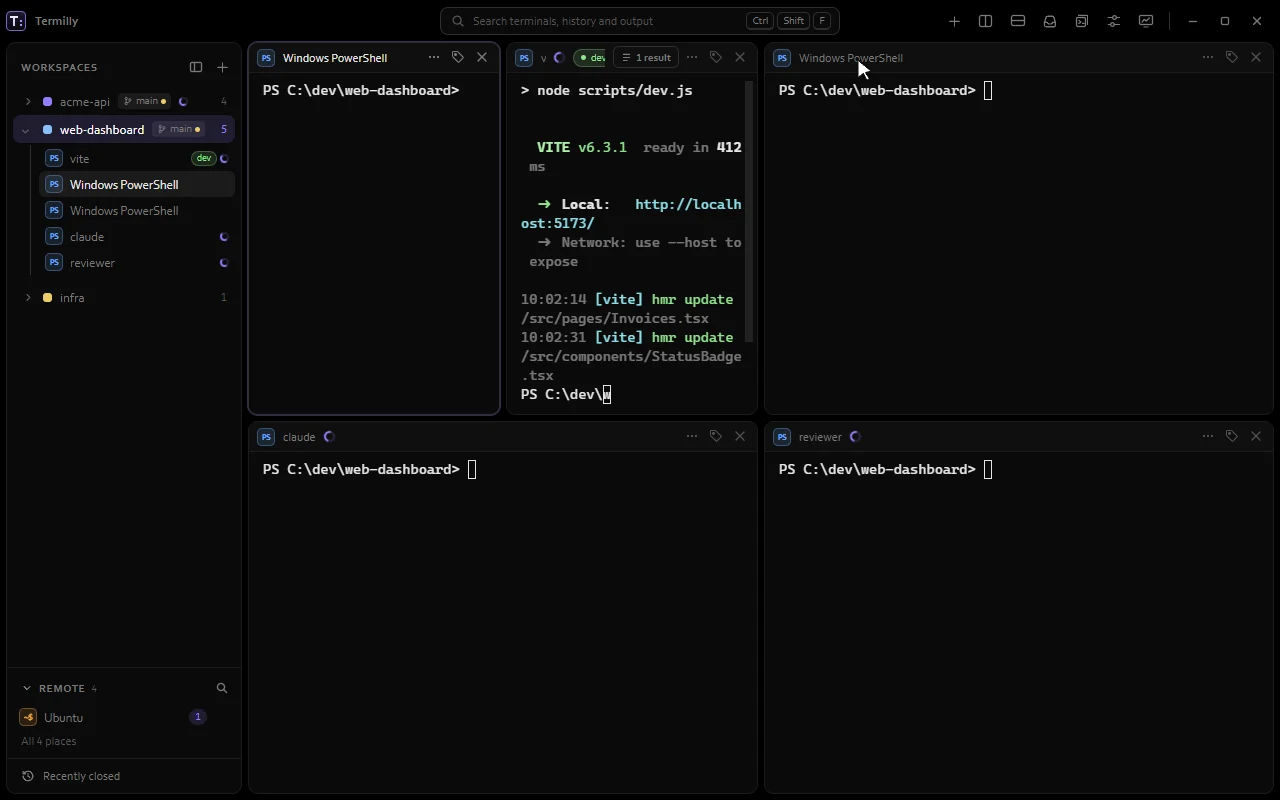
Too many terminals to read? Stack some as tabs. You see one at a time; the rest keep running at the same size. The tab is the terminal's title bar, with its name, status, tags, menu and close button.
- Drop a pane on the middle of the guide, or on a strip of tabs, to add it.
- Switch with a click, or CtrlPageDown and CtrlPageUp.
- When tabs don't fit, scroll with < and > or the mouse wheel.
- Drag a tab onto another pane, or to an edge of its group, to take it out. A group left with one terminal becomes a plain pane.
- A tab whose agent is waiting for you turns amber, even when hidden.
- Close a tab with its × or a middle click.
Tabs are saved with the workspace and in exported layouts (tabs:, see Project layouts).
Tags and production terminals
Tags are short labels on a terminal, like dev, db or prod. Press Tags on the header (or in the terminal menu), pick a tag or type a new one, choose a colour and press Enter. Tags work in search (tag:), triggers, broadcast and snippets.
Production and staging
A terminal counts as production when:
- it or its profile is tagged
prod(SSH hosts with production-like names start taggedprod), - its SSH host matches Prod hosts in Settings › Terminal › Production, or
- it's running
sshto such a host.
Staging works the same, with the staging tag and Staging hosts. Default patterns (* matches anything):
- Production:
*-prod*,prod-*,prod.*,*.prod.*,*production* - Staging:
*staging*,*-stg*,stg-*
Production gets a red frame and a PROD chip; staging gets amber and STAGING. Tint the background adds a faint wash of the colour.
Ask before pasting sets when pasting into production asks first: Always, Several lines or risky, Risky words (rm, drop, delete, truncate, shutdown, kill and so on) or Never. Broadcasts, dropped files, snippets and scripts always ask.
Scripts and agents can't read production terminals, or ones tagged sensitive, unless you allow it.
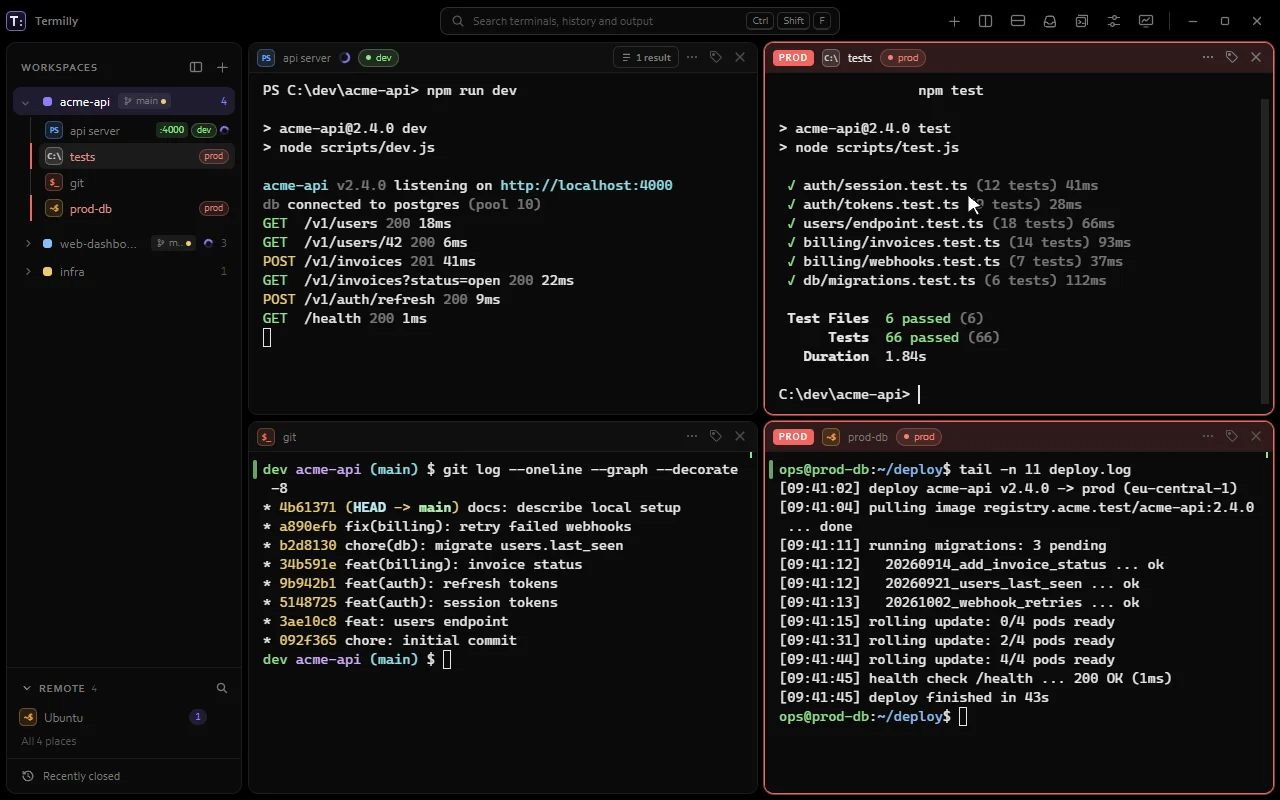
Remote: SSH, WSL, containers and serial
The Remote section of the sidebar lists everywhere you can open a terminal, and how many are open on each. Pinned and recent ones come first; search finds the rest. Click one to open a terminal there.
Right-click for Open a terminal here, Open in a new workspace, Go to its terminal and Pin to the top.
SSH hosts
Every Host in ~/.ssh/config shows up as a profile. ssh handles keys, agents and jump hosts. On Windows, that's the OpenSSH client built into Windows.
Settings › SSH also has:
- Your connections: Add connection with Name, Host, User, Port, Jump hosts and Tags. Sign in with ssh-agent or default keys, a key file, a FIDO2 security key, a password, or a 1Password reference (op CLI). Passwords go in Windows Credential Manager (the system keyring on Linux), never in Termilly's files.
- Port forwards: local (
-L), remote (-R) or SOCKS (-D) through one of your hosts, on 127.0.0.1 only. Start and stop them there, or tick Start when Termilly starts. They need a key or saved password, since there's nowhere to type one. - Import: Find sessions brings in sessions from PuTTY, MobaXterm, SecureCRT and mRemoteNG. Host, user, port and key file come across; passwords don't.
- Reconnect when the connection drops: after a network drop or sleep, the terminal reconnects, goes back to its folder and runs the host's After reconnecting command (set in the terminal menu, like
tmux attach). - Keepalives: a dead connection is noticed in under a minute.
WSL
On Windows, each WSL distribution is a profile that opens in its home folder.
Docker containers and Kubernetes pods
If you have docker or kubectl, running containers and pods (current kubectl context, all namespaces) show in the + menu and under Remote. Each opens bash inside, or sh if there's no bash.
The list updates when Termilly starts and when you press Refresh containers and pods. Turn it off in Settings › Terminal › Containers and pods.
Serial ports and network consoles
On Windows, open COM ports from the + menu (Serial & consoles). Settings › Serial sets each port's speed, data bits, parity, stop bits, flow control, what Enter sends (CR, LF or CRLF) and logging. An unplugged adapter is retried until it's back.
Add network console connects to a console server or network device over raw TCP or Telnet (with RFC 2217 to set the line speed).
A serial terminal's menu has Send Break, Hex view and Enter sends.
SFTP
In an SSH terminal, press CtrlShiftL or choose Files (SFTP) from its menu to browse the server's files.
- Follow keeps the panel in the shell's current folder.
- Click a folder to open it. Buttons go up, refresh and make a folder.
- Each row has download (↓, to your Downloads folder), rename and delete.
- Press Upload or drop files on the panel to upload to the folder shown. Transfers queue at the bottom.
tmux
Run Attach tmux from the palette. tmux windows become workspaces and its panes become Termilly terminals, in the same layout, with Termilly's search, history and triggers.
- Where: a WSL distribution, one of your SSH hosts, this computer (on Linux), or your own Command.
- Session: the session to attach to or create (
mainby default).
Closing the workspaces just detaches; tmux keeps running. You need tmux 3.2 or newer.
Drop-down window and scratch terminal
Drop-down window (Windows)
Turn on Settings › Workspaces › Drop-down from the top. A shortcut then slides Termilly down from the top of the screen, from any app, and back up again.
- Shortcut: Win` (default), CtrlAlt` or AltF12. Windows Terminal also uses Win`, so pick another if you have it. Settings tells you if another app owns the shortcut.
- Height: 30%, 50%, 70% or Full.
- Hide when it loses focus.
- Shows: the last workspace, or its own workspace called Drop-down.
Leave drop-down in Settings, or Leave drop-down mode (normal window) in the palette, brings the normal window back.
Scratch terminal
CtrlShift` opens a floating terminal for a quick command, outside any workspace. Drag it by its header. Press the shortcut again to hide it; it keeps running and comes back as it was. It isn't kept in history when you close it.
Broadcast input
Broadcast sends what you type to several terminals at once.
- CtrlShiftI turns it on or off for the current workspace.
- The terminal menu's Broadcast input has To this workspace, To terminals tagged (across workspaces) and To terminals I pick.
Each terminal in scope gets a Receiving / Not receiving switch to leave it out or put it back. Compose (titlebar or palette) sends edited, multi-line text to all of them. Stop ends it. Production terminals ask first.
Restoring sessions and the background host
When Termilly starts
Settings › Workspaces › When Termilly starts has three choices:
- Terminals and output (default): terminals come back in their folders with their last output. Claude Code sessions pick up again (a hibernated one when you open its terminal). SSH terminals reconnect. Output is saved encrypted every half minute and on close.
- Layout only: workspaces and splits, with fresh shells.
- Fresh: a new workspace. Tags, the sidebar and recent folders stay.
Keep shells running
Turn on Settings › Workspaces › Keep shells running when Termilly closes. A background process, termilly-host, then runs your terminals. Closing, crashing or updating the window doesn't end them; the next window picks them up, with anything printed meanwhile. It takes effect the next time Termilly starts.
- Start it when you sign in starts the background process at sign-in.
- Stop background shells ends every kept shell and the process itself.
Recently closed
Closed terminals are kept in history with their name, tags, folder and output. Find them under Recently closed at the bottom of the sidebar, or search. Reopening gives you the same shell, name and tags, with the old output above a new prompt.
They're kept 30 days by default (7, 30, 90 days or a year in Settings › Privacy & security). To skip one, untick Keep in history after closing in its menu.
Agents
Coding agents
Termilly knows what Claude Code is doing in each terminal. It uses Claude Code's own hooks, added next to yours, and leaves your Claude settings alone. It's on by default in Settings › Terminal › Agent integration (changes apply to new terminals).
What you see
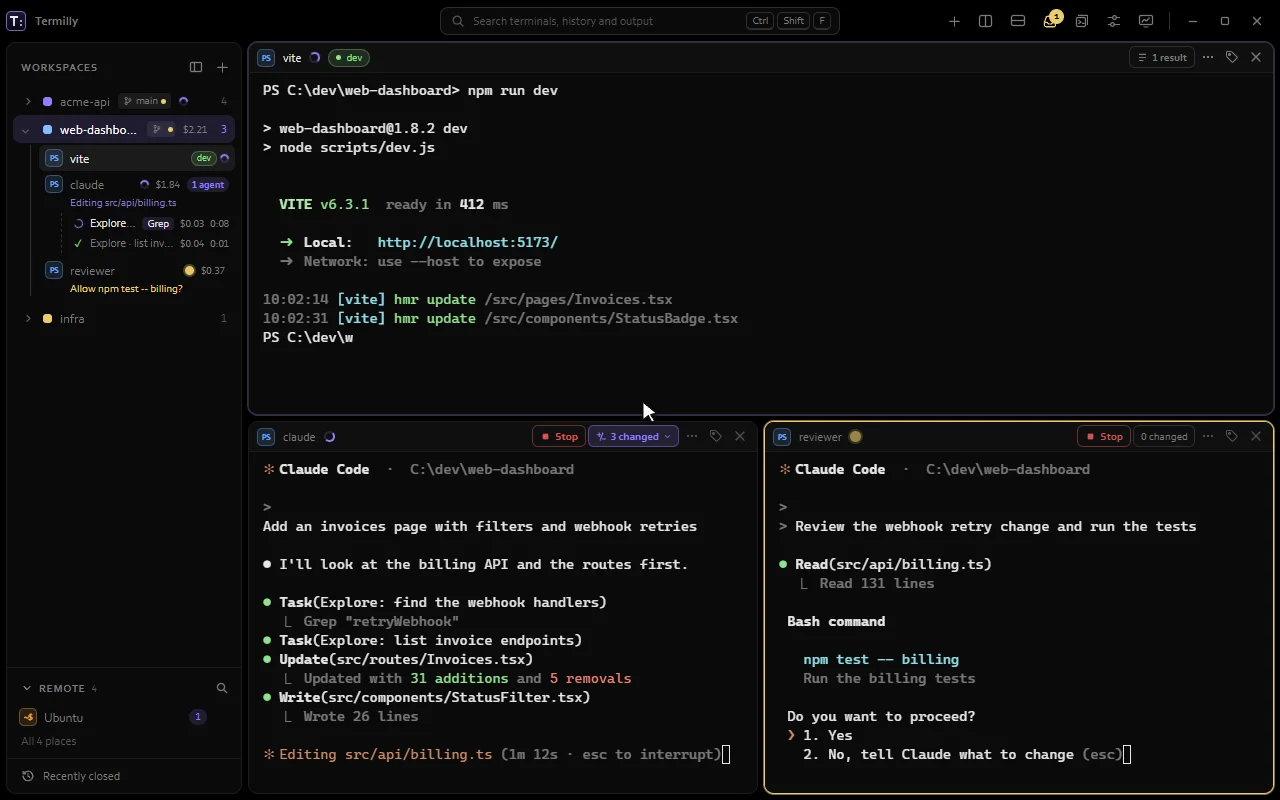
The terminal's title, sidebar row and pane border show the agent's state:
| State | When |
|---|---|
| Working | A spinner while Claude works. |
| Needs you | Claude asks for permission (Allow Bash?) or a question. |
| Finished | Your turn. |
| Stopped with an error | The turn failed, with the reason if Claude gives one. |
| Hibernated | Ended to save memory. Resumes when you open it. |
News you missed stays unread until you look. Other agents, like Codex, show as wanting attention when they send a notification or a bell.
A dim line under the agent's sidebar row says what it's doing right now. Set it in Settings › Terminal › Agent activity line: On, This workspace or Off.
Subagents
Running subagents show as rows under their terminal, with what they're doing and for how long. A finished one shows a ✓, then leaves. Background subagents stay until they finish or the session ends.
Cost and usage
Each agent's cost shows on its row and header, with the workspace total on the workspace row. It's Claude's own figure (as in /cost) or an estimate. On a Pro or Max plan it's the API price, not a bill. Choose Dollars, Tokens or Off in Settings › Terminal › Agent cost.
The session chip on the header shows the model, context and tokens. Turn on Plan usage limits to see your 5-hour and weekly limits too. Your own status line still works. Everything is read from files on your PC; nothing is sent anywhere.
Stopping an agent
Press Stop on the header, or the square on its sidebar row. It sends Esc to interrupt Claude Code (or Codex), and asks the first time only. To stop them all, use Stop all agents in this workspace in the palette or Stop all agents here in the workspace menu.
Live agents
When you have more Claude Code sessions than Settings › Terminal › Live agents allows (4, 8, 12 or No limit; 12 by default), ones idle for 5 minutes in other workspaces hibernate. Open the terminal and the conversation resumes.
New agent in worktree
New agent in worktree (in the + menu or the palette) gives an agent its own branch and folder, so its work stays apart from yours. Pick the Repository, Branch and what to Run. Files listed in .worktreeinclude, like .env, are copied in.
When you're done, Clean up worktree in the terminal's menu shows if the branch is merged and what's uncommitted. Then it closes the worktree's terminals and removes it.
Results
The Results button on a header lists what that terminal's commands made: pull requests, issues, running apps, commits and pushes. They're read from the output; nothing is opened for you. Go to result in the palette lists them from all terminals.
Send output to an agent
Send the last output to an agent in a terminal's menu (or Send to agent in the output viewer) pastes it into an agent's prompt without pressing Enter, so you can add your question.
Notification center
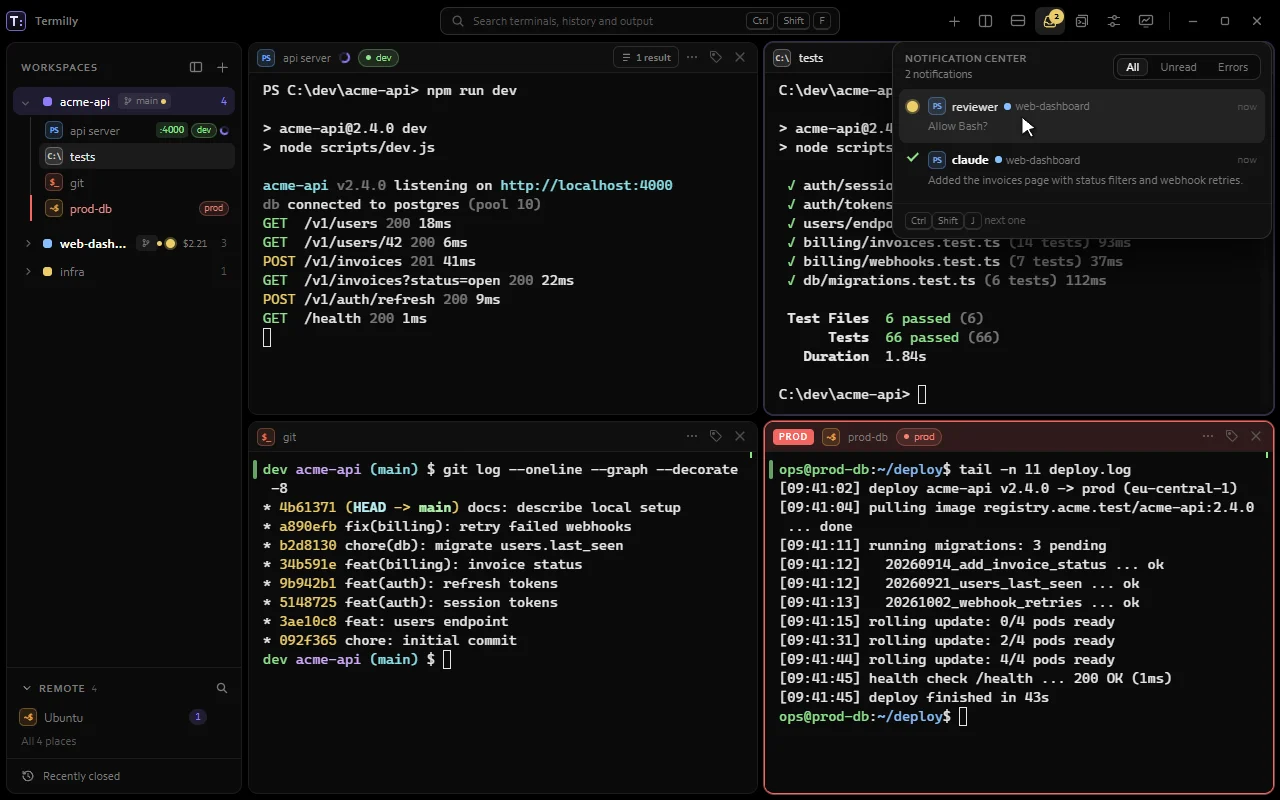
The Notification center lists every terminal that needs you: questions first, then errors, then finished work, longest wait first. Each entry shows what the agent said and how long it has waited.
- Open it with the titlebar button (it shows the count) or CtrlShiftA.
- Filter by All, Unread or Errors. Click an entry to go there.
- CtrlShiftJ jumps to the next terminal that needs you, in any workspace.
On Windows, turn on Settings › Terminal › Global shortcut to use CtrlAltJ from any app.
Windows notifications
When the terminal is out of sight, you also get a system notification when an agent needs you, fails or finishes. Click it to open the terminal (Windows). Turn each kind on or off in Settings › Terminal › Notifications: Needs you, Stopped with an error and Finished.
Change preview and Changed files
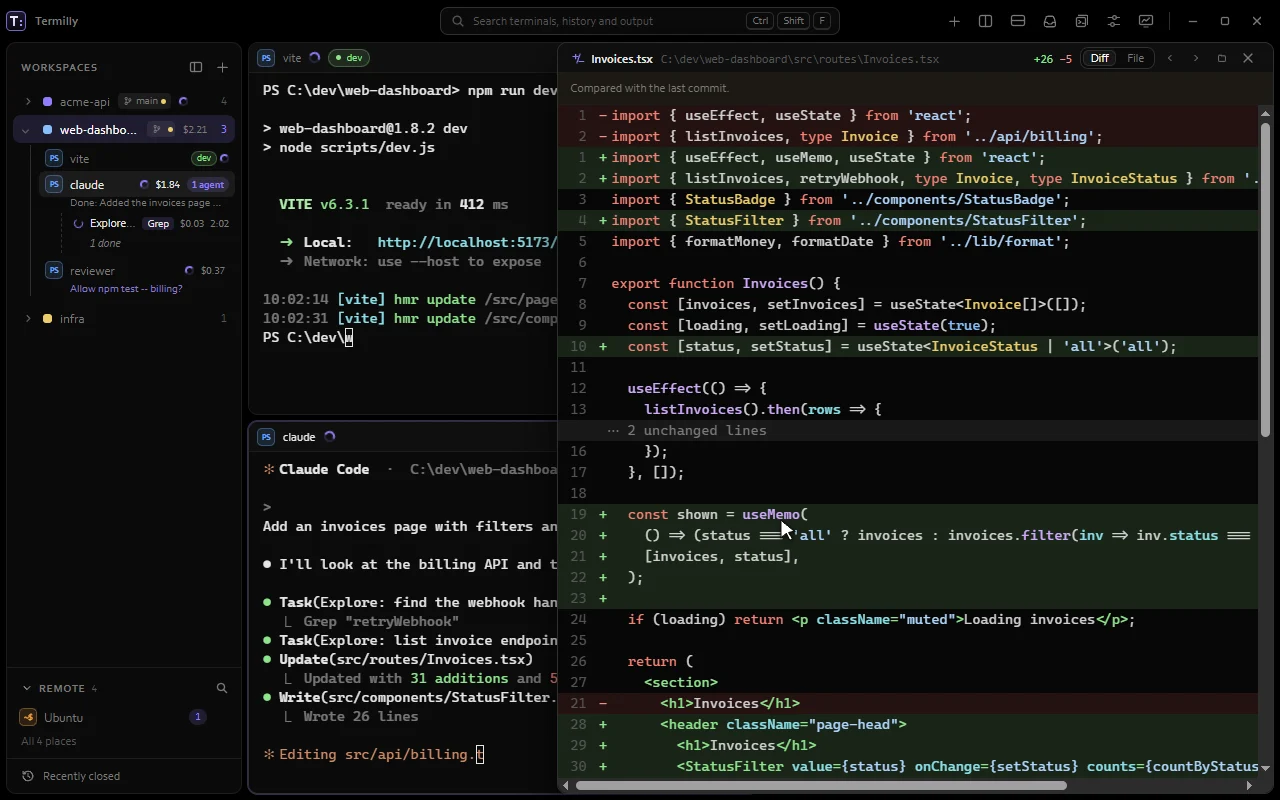
When Claude Code edits a file, the change preview shows the whole change, not just the bit Claude prints. It needs Agent integration.
Opening it
- Ctrl+click a file path in a terminal. Files Claude didn't edit are compared with the last commit. SSH and WSL files can't be previewed.
- Pick a file in the N changed list on the header.
- CtrlShiftD opens Claude's changes in the Git window, on the newest file. It closes the preview if it's open.
In the preview
- Diff or File, and All edits or Last edit.
- N and P for next and previous file, Esc to close.
- Wrap wraps long lines, here and in the Git window's diffs (Settings › Change preview › Wrap long lines).
- The Git button opens the file in Agent changes. The folder button shows it in Explorer.
If Claude changes another file meanwhile, click Show it, or pick Follow to switch automatically.
Changed files
The N changed button on a header lists every file Claude changed in that terminal, including through shell commands. Click a file to preview it, remove one with ×, or Clear the list. Otherwise it lasts until the terminal closes (or each session, with Per session).
To see them all, use Open in Git window or Show all N files (palette: Show the files Claude changed here, in the Git window). They open in the Git window's Agent changes as a live, searchable tree.
Settings
Settings › Change preview sets where it opens (Pane, Side panel or Floating), inline or side-by-side layout, colours, context lines and the largest file it copies. Where changes come from:
- File path (default): Termilly copies the file before and after each edit.
- Git: the file against the last commit, with no copies.
- Full edit: Claude also sends its edit text.
Git
Git window
The Git window shows a repository's changes, history and branches. Open it by clicking a branch in the sidebar, with Git in a workspace or terminal menu, Git: changes and history in the palette, or CtrlShiftG (the focused terminal's repository, else its workspace's). The title shows the branch and ↑↓.
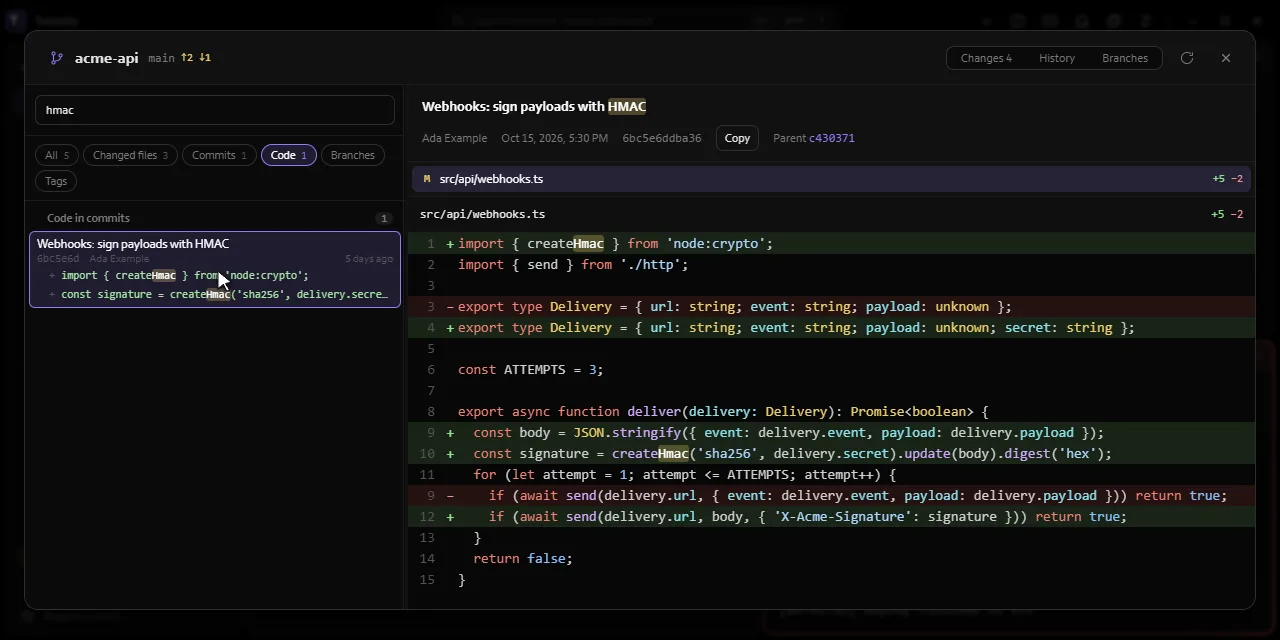
- Agent changes: the files Claude changed in that terminal, with the change preview. ← → fold folders, Delete removes a file from the list. Outside a repository, it's all you see. Terminals on a server don't keep Claude's changes.
- Changes: Staged, Changes, Untracked and Conflicts. Click a file for its diff: staged files against the last commit, others against what's staged. Renamed, binary and very large files are marked, and images show as pictures.
- History: commits, newest first. Click one for its details and diffs. Copy copies the hash.
- Branches: local and remote, with ahead/behind. Click one for its latest commits.
Diffs follow the change preview's settings. The window refreshes on its own when a command ends or you come back to it. F5 or the refresh button does it by hand, and Esc closes it.
Search the repository
Press CtrlF in the Git window to search the whole repository, ignoring case:
- Files Claude changed, even after a commit.
- Changed files, by path or content.
- Commits, by message, author, hash or changed lines.
- Branches and tags.
Chips filter by kind (Tab switches). A result opens at the match. Commit lines are searched in the newest 500 commits, and Search older commits goes on 500 at a time. Esc ends the search.
Stage, restore and switch
The Git window doesn't commit, but you can right-click to:
- Stage, unstage or restore a file. Add an untracked one to
.gitignoreor delete it. Mark a conflict resolved. - Switch to a branch (or use the button by its name).
Restore and delete ask first.
Images
Changed images (PNG, JPEG, GIF, WebP, BMP, ICO, AVIF, SVG) show before and after side by side, with their size in pixels and on disk. An added or deleted file shows one picture. SVGs also show a text diff, and an image over the size limit says so.
Branch in the sidebar
Each workspace shows its git branch in the sidebar, with a dot for uncommitted changes and ↑↓ when you're ahead or behind. A terminal in another repository or worktree shows its own branch. Click a branch to open the Git window.
Turn it off in Settings › Workspaces › Project status. Termilly never checks network shares.
Find and reuse
Search
CtrlShiftF (or the titlebar search box) finds terminals, open or closed, by name or output. It also finds workspaces, commands and settings. The preview shows the matching line.
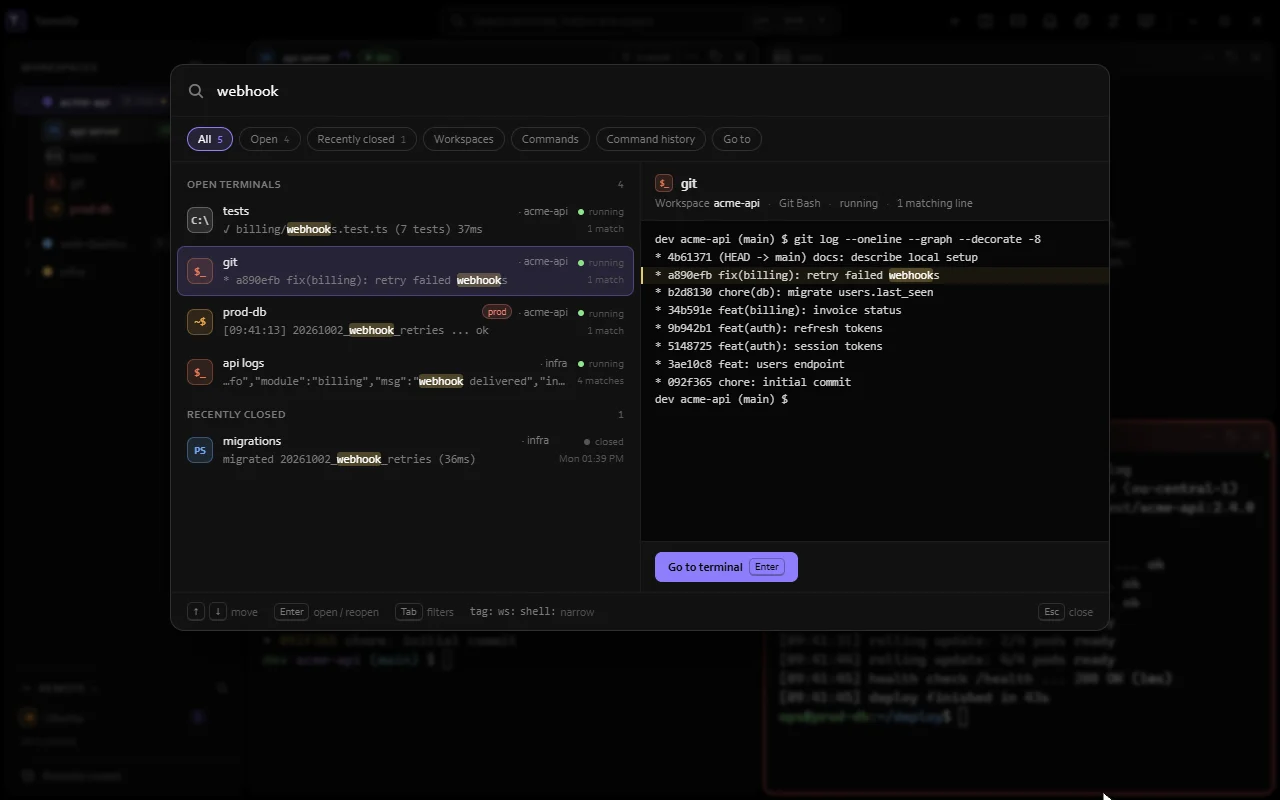
- ↑ ↓ move, Enter jumps to the match, Esc closes.
- Tab switches filter: All, Open, Recently closed, Workspaces, Commands, Command history, Go to.
- Narrow with
tag:,ws:andshell:, liketag:prod ws:acme-api migrat.
It's also the command palette, with every command and every setting (as Settings: name).
Go to
CtrlShiftO opens Go to a workspace, folder, closed terminal or SSH host. A folder opens as a new workspace (with its .termilly.yml layout, if any). An SSH host connects in a new terminal.
Command history
CtrlShiftH lists the commands you've run, newest first, with exit code, time taken and folder. It needs shell integration.
- Type words to match.
failedorokfilters by result.in:acme-apishows commands run in a matching folder.
Enter (Put at the prompt) types the command without running it. Copy copies it.
History is encrypted and keeps 5,000 commands, for as long as Settings › Privacy & security › Keep closed terminals for. To share it between PCs, see History sync.
Output viewer
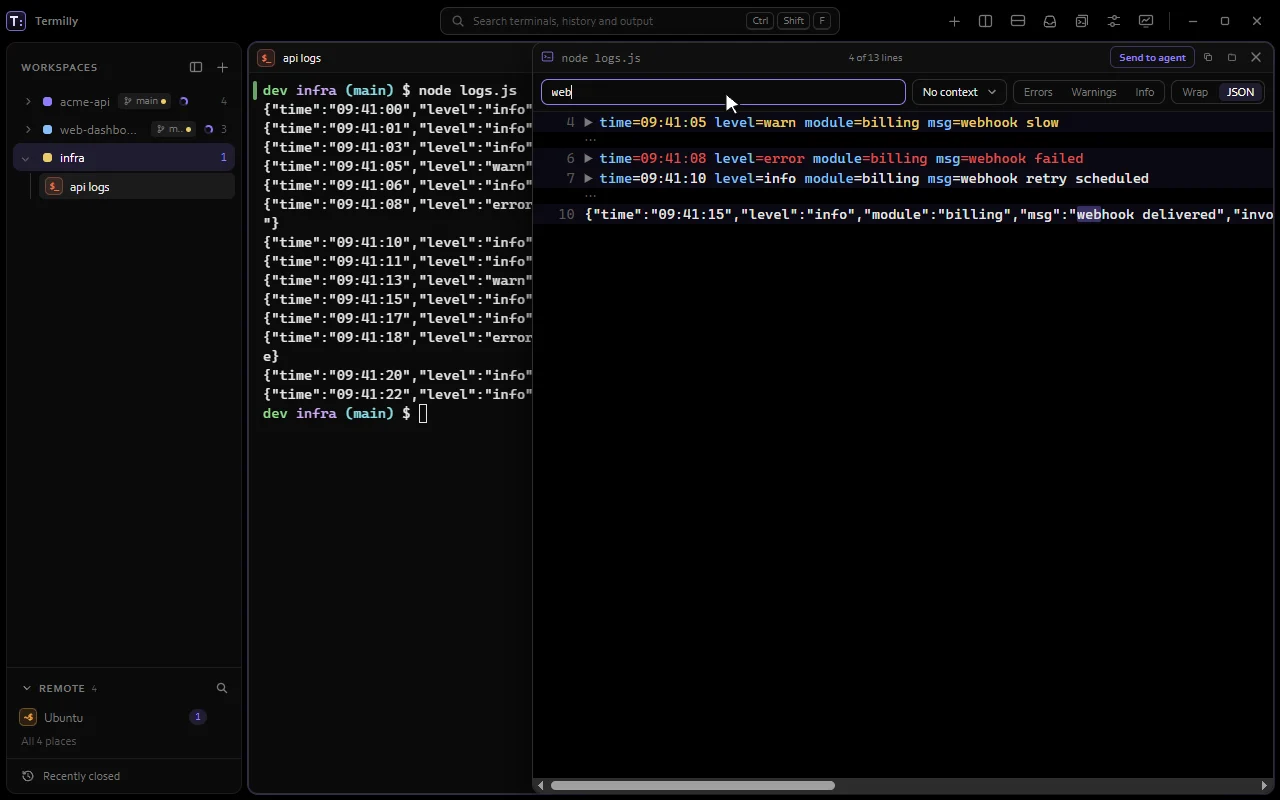
Read one command's output in its own panel. Open it with Open output in viewer in the terminal menu, Open the running command's output, or Open the last command's output in a viewer in the palette. It needs shell integration.
- Filter by text or
/regex/, with No context, ±2 lines or ±5 lines. - Errors, Warnings, Info show just those lines.
- Follow keeps up with new output, like
docker logs -f. - Wrap long lines. JSON pretty-prints and folds JSON.
- Send to agent, copy or save. Esc closes.
Snippets
Snippets are saved commands. Run one in the focused terminal, the broadcast's terminals, or every terminal with a tag.
Placeholders
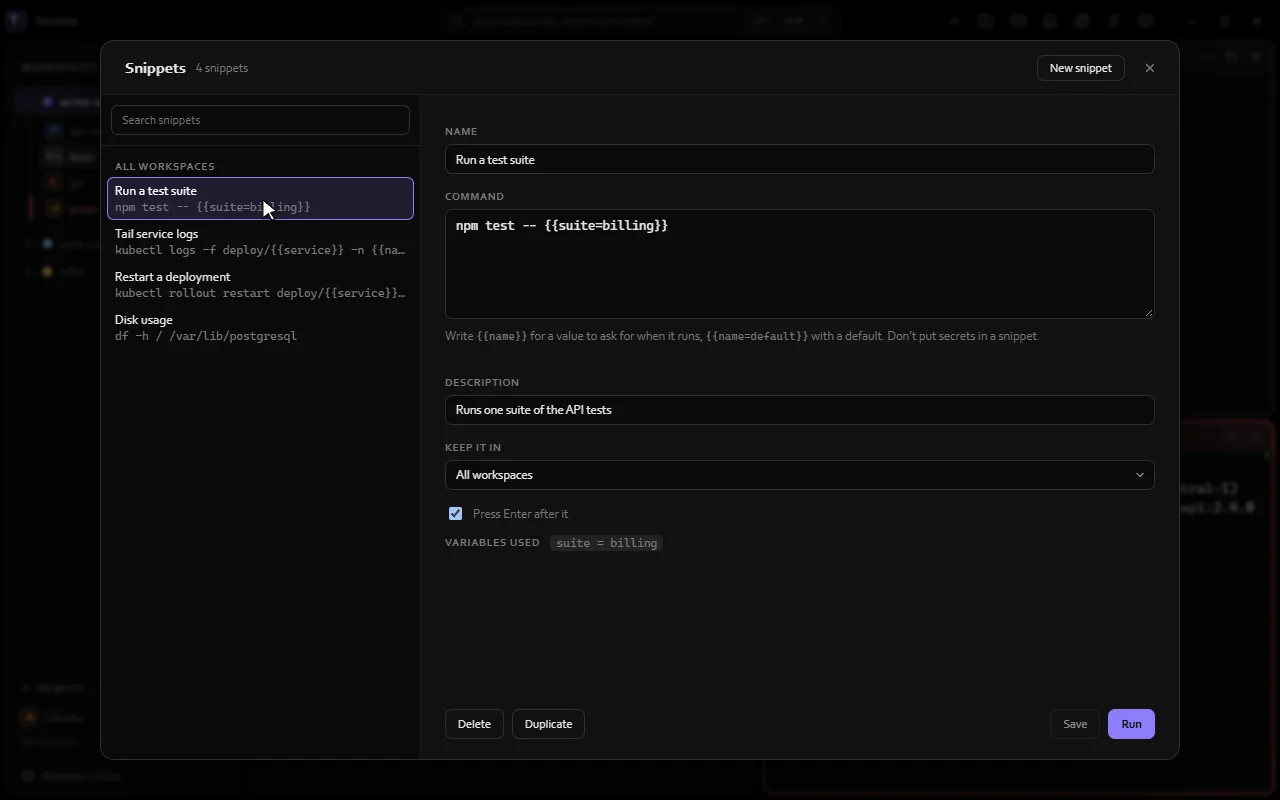
Use {{name}} for a value you fill in at run time, or {{name=default}} to give it a default:
kubectl logs -f {{pod}} -n {{namespace=default}}A small form asks for the values, remembers your last ones and shows the final command. Run in picks This terminal, The broadcast's terminals or Every terminal tagged a tag. On production, Termilly asks first.
Don't put secrets in a snippet.
Running a snippet
- Run snippet in the terminal menu, or Run a snippet in the palette: a searchable list with Run and Edit.
- Snippet: name in the palette.
- Type
snippet:at an empty prompt for a list at the cursor.
The snippet: list runs in the focused terminal:
- It filters as you type and shows each snippet's command and values.
- ↑ ↓ pick, Tab or Enter runs, Esc types what you wrote instead.
- Typing the whole
snippet:nameand Enter runs it too. - Nothing you type there reaches the shell.
- It needs shell integration (PowerShell, Git Bash, WSL bash, and servers with Termilly set up).
The Snippets window
The Snippets titlebar button (or Manage snippets) opens a list and an editor. Each snippet has a Name, Command, Description, Keep it in and Press Enter after it (off types it without running).
- New snippet (CtrlN), Save (CtrlS), Duplicate, Delete (Delete), Run (Enter). Esc closes.
- Unsaved changes? It asks before you leave.
Ran something worth keeping? Use Save the last command as a snippet in the terminal menu.
Where snippets are kept
- All workspaces: in Termilly's settings.
- One workspace: saved with it and its exported layout. A project's
.termilly.ymlcan add its own undersnippets:to share them in git (see Project layouts).
Scripts and agents can use them too: termilly snippet list / termilly snippet run, or MCP's list_snippets / run_snippet.
Record and Rewind
Rewind
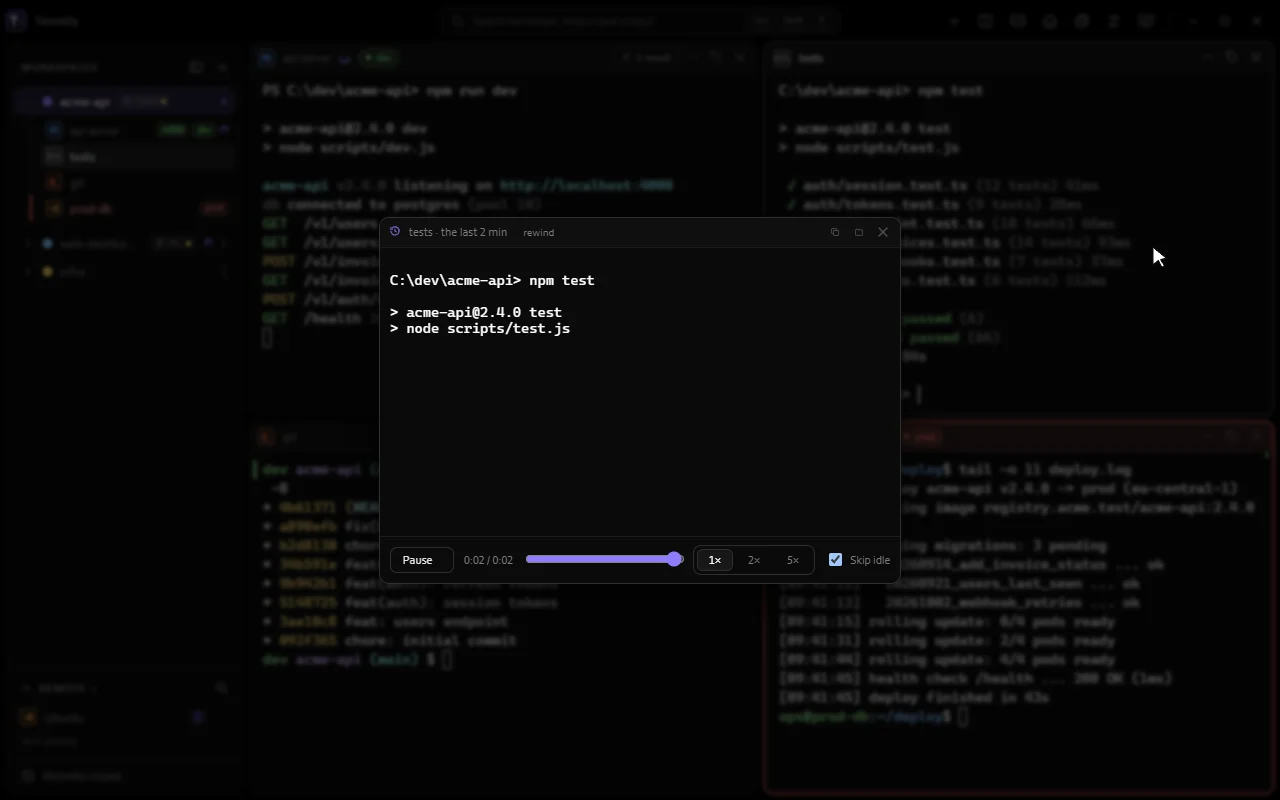
Termilly keeps each terminal's last 3 minutes of output in memory. Rewind in the terminal menu (or Rewind this terminal) plays it back, so you can see what was there before a program cleared the screen.
Record
Record in the terminal menu saves a .cast file (asciicast) with output, timing and command marks. It never records your typing. Click the REC chip on the header to stop.
Files go to Documents\Termilly\recordings. Settings › Terminal › Recordings sets the folder, a size limit (50, 100 or 500 MB), secret redaction, and auto-recording of agent terminals.
Open a recording in the palette lists them. They also play in asciinema play.
The player
Rewind and recordings share one player: play/pause (Space), 1×, 2× or 5× speed, a timeline with command marks, and Skip idle. You can also copy the screen as text. Esc closes it.
Session logs
Log to file in the terminal menu writes output to a plain file (a LOG chip shows). To log automatically, turn on Always log for a shell, or add tags like prod to Settings › Terminal › Session logs › Always log these tags.
Logs go to Documents\Termilly\logs\{workspace}\{terminal}_{date}_{time}.log. You can pick plain text or raw, timestamps, redaction and auto-delete.
Logs are plain files and aren't encrypted.
Alerts and triggers
Alert me
For work that isn't an agent, use Alert me in the terminal menu:
- When the running command finishes
- When it's quiet for 30 seconds
- When it prints something
It fires once: the terminal asks for attention, and you get a notification if you can't see it.
Triggers
Triggers act when output matches a pattern. Set them in Settings › Terminal › Triggers: a regex, a scope (Every terminal, a tag or a shell) and an action:
- Highlight the match.
- Highlight, keep in list: also save the line to Captured lines in the sidebar.
- Notify me.
- Ask for attention: the amber dot.
Start from the Errors, Warnings or Build finished presets, or Add trigger. Your prompt and typing are never matched when the shell marks its commands.
Notes
Leave a note like "staging DB is read-only until Friday" on:
- a terminal (Note in its menu);
- a workspace (Note in the workspace menu);
- an SSH host (Note on the host, in a terminal's menu). It shows on every terminal to that host.
Markdown, up to 4,000 characters. Pin the first line shows it on the header. Hover the note icon to read, click to edit, CtrlEnter to save. Terminal and workspace notes are encrypted.
Customise
Themes
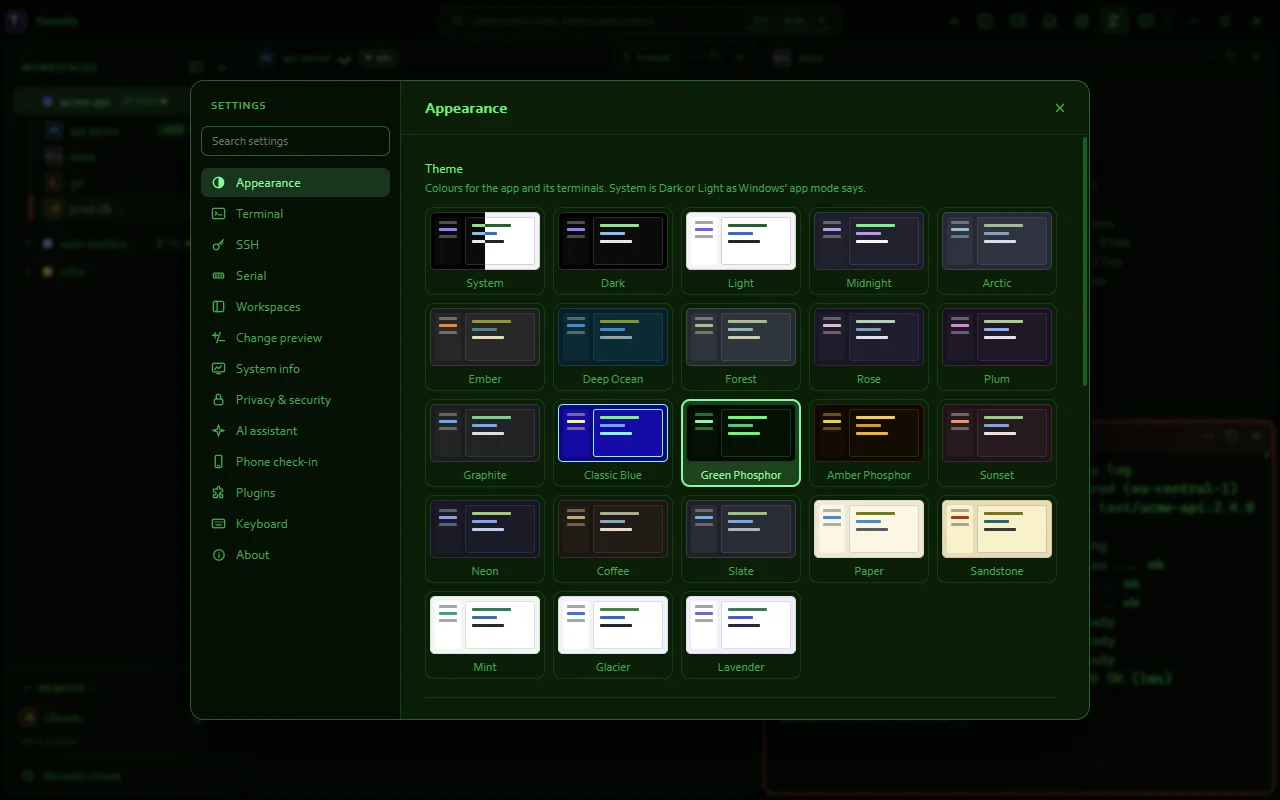
Pick a theme in Settings › Appearance › Theme: System (follows your OS), Dark (the default) or Light. Themes change colours only, not fonts.
The palette has Switch light / dark theme and Theme: name. Plugin colours are in Settings › Plugins › Terminal colours.
Fonts and text
Settings › Appearance › Font has a Terminal / App switch. Terminals use a monospace font (Consolas by default); the rest of the app can use any font (Windows default (Corbel)).
- Size: 8 to 32 px, 14 by default. Ctrl+, Ctrl-, Ctrl0 or Ctrl + wheel work anywhere.
- Line height: 1.0, 1.2 (default), 1.4 or 1.6.
- Text smoothing (Windows): Greyscale is crisper on dark backgrounds; ClearType matches other apps.
- Cursor Style (Bar, Block, Underline) and Blink.
Settings overview
Ctrl, opens Settings. Changes apply right away. Use Search settings to find anything.
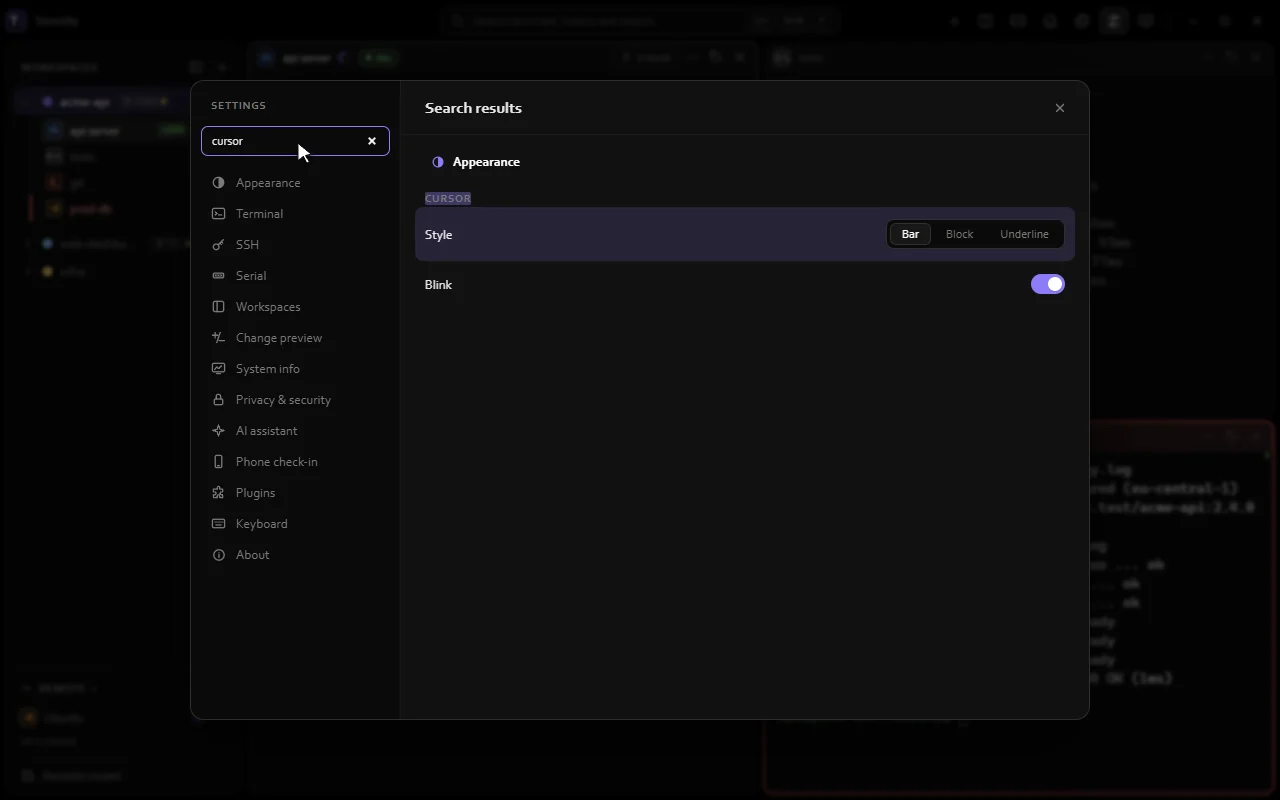
- Appearance: theme, fonts, text size, line height, cursor.
- Terminal: default shell, profiles, scrollback (1,000 to 50,000 lines), pasting, inline images, clipboard, containers and pods, activity spinner, agent integration, Claude limits, shell integration, what scripts and agents may do, agent cost, activity line, live agents, global shortcut, production rules, session logs, recordings, notifications, triggers, detected shells and SSH hosts.
- SSH: connections, reconnecting, keepalives, port forwards, importing from other SSH apps.
- Serial: COM ports and network consoles.
- Workspaces: closed sidebar, sidebar width, background shells, what comes back at start, closing workspaces, git and ports, drop-down window.
- Change preview: how Claude's edits are shown.
- Privacy & security: recovery code, history, redaction, sync.
- AI assistant: provider and access.
- Phone check-in: view terminals from your phone, paired phones.
- Plugins: folder, installed plugins, colours.
- Keyboard: all shortcuts.
- About: version, updates, tour, data folder, memory use.
Updates
Termilly checks termilly.com at start and twice a day. When there's a new version, Update shows in the title bar. Nothing downloads until you choose:
- Download and install gets the installer and checks it against the signed release. Cancel download stops it.
- Restart to update closes, installs and reopens Termilly. On Windows your terminals restart. On Linux it asks for your password, and with Keep shells running on, terminals keep going.
- What's new shows release notes. Skip this version waits for the next one.
Settings › About has Check now, and Check for updates to turn checks off.
Plugins
A plugin is a folder with a plugin.json in the plugins folder (Settings › Plugins › Open folder). Press Reload after changes. Each plugin has an on/off switch and shows errors if it fails.
{
  "apiVersion": 1,
  "id": "acme.night",
  "name": "Acme Night",
  "version": "1.0.0",
  "description": "A dark terminal palette and a palette command.",
  "themes": [
    { "id": "night", "name": "Acme Night", "light": false,
      "colors": { "background": "#101010", "foreground": "#e0e0e0", "red": "#ff5555" } }
  ],
  "main": "main.js"
}apiVersion:1. Other versions are disabled.id: unique; lower-case letters, digits, dots, dashes.themes(optional): terminal colours with xterm's keys (background,foreground,cursor,cursorAccent,selectionBackground,blacktobrightWhite). Missing ones come from the dark theme, or light with"light": true.main(optional): a script, up to 256 KB.
The script
Scripts run sandboxed, with no network and no access to Termilly's page or files. They get one object, termilly:
| Member | What it does |
|---|---|
termilly.apiVersion | 1 |
termilly.registerCommand({ id, label, keywords }, handler) | Adds a palette command. handler({ pane }) gets the focused terminal's id, or null. |
termilly.call(method, args) | Calls a termilly command method (list, state, status, open, send, etc.). Returns a Promise. |
termilly.setStatus(pane, text) | Shows a status next to the terminal's title. |
open, send and snippets need Settings › Terminal › Let scripts and agents type. A script that throws or takes over 3 seconds to load is stopped and Settings shows the error, but the rest of Termilly keeps working.
Automate
The termilly command
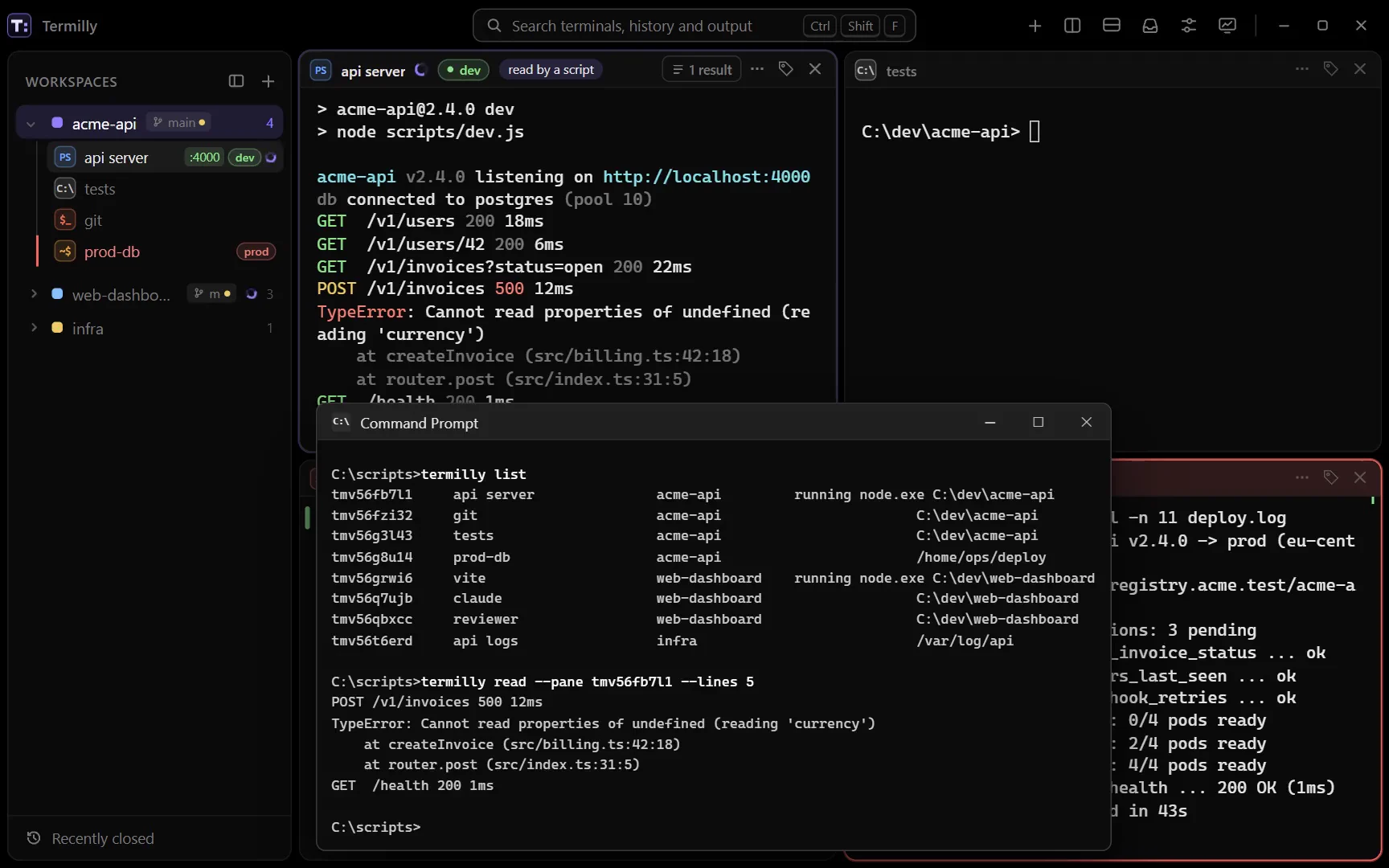
Use termilly to drive Termilly from a script, a CI job or a coding agent. It works in every Termilly terminal. To use it outside Termilly too, pick the installer's termilly command in cmd and PowerShell option (the Linux package has it already).
--pane defaults to the terminal you're in. Get another terminal's id from termilly list or Terminal ID in its menu.
Commands
| Command | What it does |
|---|---|
termilly list [--json] | Your terminals: id, title, workspace, state, folder. --json adds shell, tags, status and focus. |
termilly state [--pane ID] | One terminal as JSON, with its last command, exit code and duration. |
termilly status <text> [--pane ID] | Shows a status (60 characters max) next to the title. "" clears it. |
termilly open [--profile P] [--cwd DIR] [--name N] [--workspace W] [-- command...] | Opens a terminal and prints its id. --profile is a shell's name or id. --workspace creates the workspace if needed. Anything after -- is typed at the first prompt, quoted for that shell. |
termilly send <text> [--pane ID] [--enter] | Types into a terminal. --enter also presses Enter. |
termilly snippet list [--json] | Your snippets and their commands. --json adds variables. |
termilly snippet run <name> [--pane ID] [--var NAME=VALUE]... | Runs a snippet and prints the command. Give each placeholder a --var, unless it has a default. |
termilly read [--pane ID] [--lines N] | The last command, exit code and output. With --lines, the last N lines (default 100, max 500). |
termilly wait [--pane ID] [--match REGEX] [--timeout S] | Waits for the command to finish, or for a new line to match the regex (any case). Then prints like read. Times out after 60 seconds by default, max 110. |
termilly history [words] [--failed] [--in FOLDER] [--limit N] | Commands you ran, newest first, with exit code and folder. Failed ones start with x. Shows 30 by default. Secrets are hidden. |
termilly mcp | Runs an MCP server over stdio. See MCP server. |
termilly help | Lists the commands. |
Exit codes:
0done1failed, with the reason printed astermilly: ...2waittimed out
Outside Termilly, termilly on its own starts the app. termilly <folder> or termilly . opens it in that folder. If Termilly is already running, you get a terminal there, or the one already there comes forward.
What scripts may do
- Always: list terminals, see their state, search history and set a status.
- Reading other terminals (
read,wait): on for local terminals only. SSH, WSL, containers, production andsensitive-tagged terminals are off. Change it in a terminal's menu with Scripts and agents › Can read this terminal, or for all with Settings › Terminal › Agents can read other terminals. - Typing (
send,snippet run): turn on Settings › Terminal › Let scripts and agents type, and allow it in the terminal's menu with Scripts and agents › Can type here. A script can always type into its own terminal. Typing into a production terminal asks you first.
Secrets are redacted from history and from anything a script reads. Each read or typed text shows briefly on the terminal's header ("read by a script") and is listed in its Scripts and agents menu.
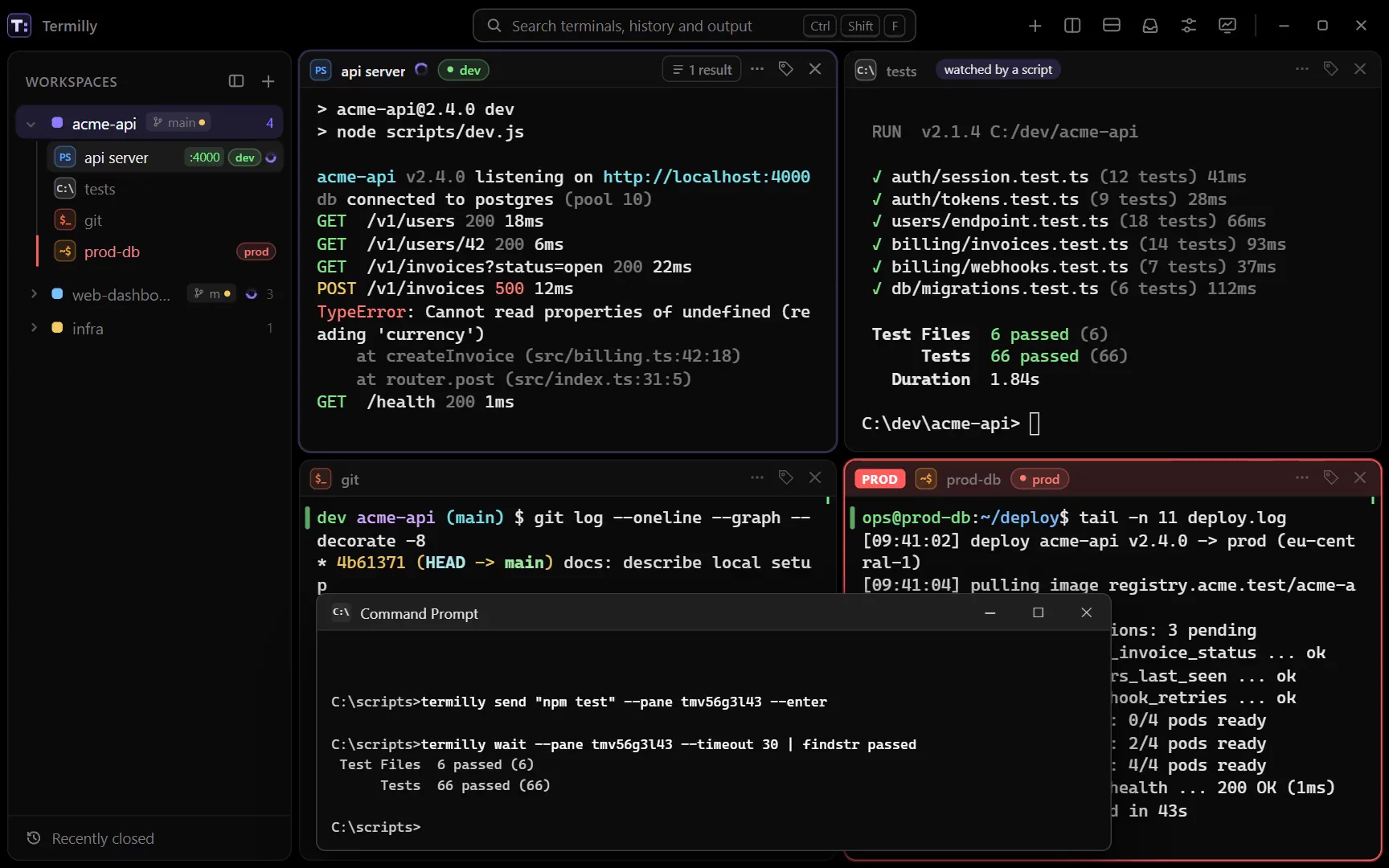
Example
# Run the tests in the "tests" terminal and wait for the result
termilly list
termilly send "npm test" --pane t1a2b3c --enter
termilly wait --pane t1a2b3c --timeout 100

# Open a dev server in the acme-api workspace and wait until it's up
termilly open --workspace acme-api --cwd C:\dev\acme-api --name "api server" -- npm run dev
Your terminal ids will differ. Get them from termilly list.
MCP server
termilly mcp lets coding agents use Termilly. To add it to Claude Code, run:
claude mcp add termilly -- termilly mcpThe agent can then see your terminals, read output from another one (like a dev server or tests), search your history, set a status and run your snippets.
The same permissions apply as for the termilly command. Secrets are redacted, and what the agent reads is marked as terminal output, not instructions.
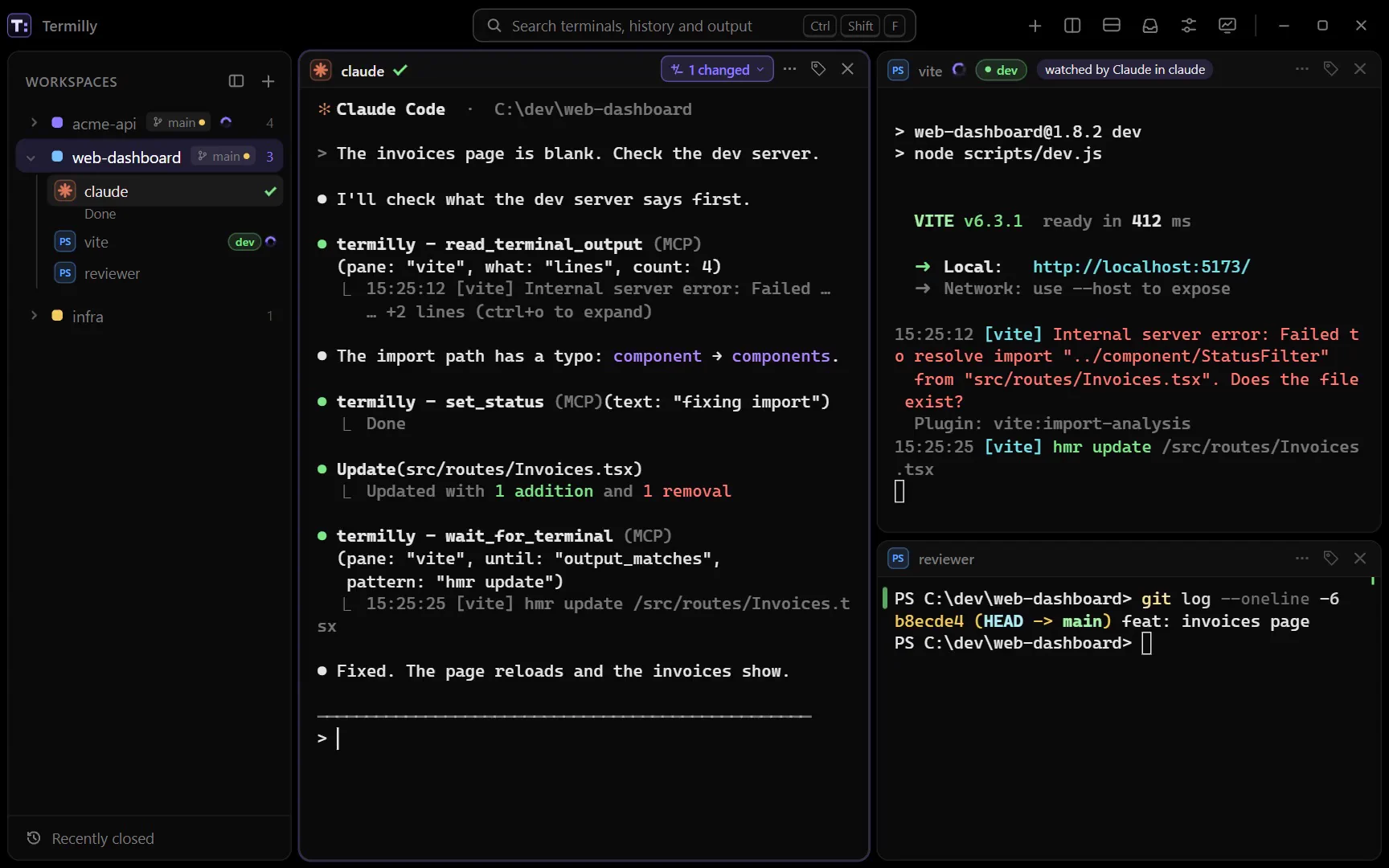
| Tool | What it does |
|---|---|
list_terminals | Your terminals: id, title, workspace, shell, folder, tags, agent state and running command. |
terminal_state | One terminal's details, with its last command and exit code. |
search_command_history | Commands you ran, newest first, with exit code, duration and folder. Filter by words, failed only, folder or limit. |
set_status | Shows a short status next to a terminal's title. |
read_terminal_output | Another terminal's last command and output, or its last lines. |
wait_for_terminal | Waits for a command to finish or a line to match, then reads. |
list_snippets | Your snippets, with their variables. |
run_snippet | Runs a snippet in a terminal. Needs typing allowed. |
open_terminal | Opens a terminal, optionally running a command. Needs typing allowed. |
send_to_terminal | Types into a terminal. Needs typing allowed. |
The last three only appear while Settings › Terminal › Let scripts and agents type is on. Agents pick up a change the next time they list Termilly's tools.
Project layouts (.termilly.yml)
A layout file saves a whole workspace: name, colour, folder, notes, snippets, and its terminals with their splits, tabs, shells, folders, tags, start commands and variables. Commit it as .termilly.yml and teammates who open the folder get the same terminals.
- Opening a project: when a new workspace (or a folder from Go to) has a
.termilly.yml, Termilly asks Open the project layout?. Pick Open layout to open its terminals and run their start commands, or Just one terminal to skip it. - Export: use Export layout in the workspace menu, or Export this workspace's layout in the palette. Subfolders are saved as
./sub, so the file works in any checkout. - Import: Import a workspace layout in the palette opens a file as a new workspace.
Unknown keys and bad values are skipped, and Termilly tells you which.
Example
# .termilly.yml
version: 1
name: acme-api
color: "#8b7bff"
cwd: .
notes: |
  Run the migrations before the tests.
  Staging is read-only until Friday.
snippets:
  - name: Tail staging logs
    command: kubectl logs -f {{pod}} -n {{namespace=staging}}
  - name: Migrate
    command: npm run migrate
    description: Runs the database migrations
layout:
  split: row
  ratio: 0.6
  panes:
    - terminal:
        name: api server
        command: npm run dev
        tags: [dev]
        env:
          NODE_ENV: development
    - split: column
      panes:
        - terminal:
            name: tests
            profile: Command Prompt
            command: npm test -- --watch
        - tabs:
            - terminal:
                name: web
                cwd: ./web
                note: The web app talks to the API on :3000
            - terminal:
                name: logs
                command: npm run logs
          active: 0
Schema
| Key | What it is |
|---|---|
version | 1. A newer version still opens, with a warning. |
name | The workspace's name, up to 40 characters. |
color | A colour like "#8b7bff". |
cwd | The workspace's folder, relative to the file (. is the project). Environment variables and ~ work. |
notes | Team notes, up to 4,000 characters, pinned to the terminal headers. |
snippets | Up to 100 snippets, each with name, command, optional description, and enter: false to type without running. |
layout | One pane: a terminal, a split or tabs. |
terminals | Instead of layout: a list of terminals, side by side. |
A split has:
| Key | What it is |
|---|---|
split | row (side by side) or column (one above the other). |
ratio | The first pane's share, 0.1 to 0.9. Default 0.5. |
panes | Exactly two panes, each a terminal, another split or tabs. |
Tabs have:
| Key | What it is |
|---|---|
tabs | Terminals (each under terminal:) shown as tabs in one spot. A single one is just a terminal. |
active | Which tab is shown, counting from 0. Default is the first. |
A terminal (under terminal:) has:
| Key | What it is |
|---|---|
name | The terminal's title. |
profile | The shell, by name or id (PowerShell, pwsh, Command Prompt). Your default shell if left out or not found. |
cwd | Its folder, if not the workspace's. |
command | Typed at its first prompt. |
tags | Up to 8 tags. |
env | Environment variables, as NAME: value. |
note | A note on the terminal. |
Limits: 16 terminals per layout, and splits nested up to 8 deep.
Start commands run when you open a layout. Check a .termilly.yml from someone else before you pick Open layout. Don't put secrets in one.
Privacy and sync
Encryption and recovery code
Your workspaces, session and history (closed terminals and commands) are encrypted with AES-256 on your PC. On Windows the key is tied to your Windows sign-in. On Linux it's local.key in the data folder, readable only by you.
Nothing leaves your PC unless you turn on sync or phone check-in, or use the AI assistant. Settings (settings.json) are plain JSON, not encrypted.
Recovery code
If an administrator resets your Windows password, or the Linux key file is lost, the recovery code opens your history. Find it in Settings › Privacy & security › Recovery code (Show code, New code). A new code makes the old one stop working.
If Termilly can't unlock your history, it asks for the code (Unlock your history). Start fresh sets the locked data aside, untouched. Restore it later from Locked history in Settings › Privacy & security, with the code it was saved with.
History settings
- Save output of closed terminals: when off, only the name, tags and folder are kept. One terminal can opt out with Keep in history after closing in its menu.
- Keep closed terminals for: 7 days, 30 days, 90 days or 1 year.
- Clear history: deletes every closed terminal.
Secret redaction
Termilly replaces secrets with [redacted]. It catches:
- known key and token formats (GitHub, GitLab, AWS, Slack, Stripe, npm, Anthropic, OpenAI, JWTs, private keys and more)
- password arguments like
-p,--password,-Password,ConvertTo-SecureString,curl -u user:passandnet user - values of secret-sounding names (
$password = ...,API_KEY=..., connection strings), and variables later used as a password - passwords in URLs
It errs on the side of too much. A plain word that's never used as a password can't be caught.
- Always redacted: what scripts and agents read (
termilly read,wait,history, the MCP server), the AI assistant and phones. - Your choice: saved history (Redact secrets in Settings › Privacy & security, off by default, encrypted anyway), session logs and recordings (on by default).
History sync
Share command history between your PCs through a folder you already sync, like OneDrive, Dropbox or a network share. No server, no account. Output, workspaces and settings stay on each PC.
- On the first PC, open Settings › Privacy & security › Sync between PCs › Turn on and pick the folder.
- Press Show code and copy the code.
- On the other PC, press Join with a code, pick the same folder and enter the code.
Each PC writes only its own encrypted file, in a Termilly sync subfolder. Nobody can read commands, paths or PC names there, and the code is never stored in it. Termilly syncs at start, every 2 minutes and shortly after each command. Sync now syncs at once. Settings lists each PC, its command count and its last write.
- New code replaces the key and cuts off every other PC until you enter the new code there. Use it to drop a lost laptop. Commands it already has stay on it.
- Turn off stops syncing here and forgets the key. Imported commands stay.
Phone check-in
See from your phone, on the same Wi-Fi, which terminals are working, which agents need you, and recent output. It's off by default, and nothing listens while it's off.
- Turn on Settings › Phone check-in › Phone check-in. Termilly listens on port 8765 on your local network. Windows asks once to allow it on private networks.
- Press Pair a phone and scan the QR code with the phone's camera. The code shows only while the dialog is open, and expires after 5 minutes if unused.
- Requests are encrypted with a key only paired phones have. It travels in the QR code, never over the network.
- A phone sees one terminal at a time, its last 60 lines, redacted.
- Phones are read-only. With Let phones answer prompts, they can also press Approve (Enter) or Reject (Esc) when Claude asks permission.
- Remove under Paired phones deletes that phone's key at once.
The page uses plain http. Use check-in at home or the office, not on public Wi-Fi.
AI assistant
Ask questions about a terminal. It's off until you pick a provider in Settings › AI assistant:
- Anthropic: your own API key (from console.anthropic.com) and model. The key lives in Windows Credential Manager or the Linux keyring, not in Termilly's files.
- Local model: any OpenAI-compatible server, like Ollama (
http://localhost:11434/v1) or LM Studio (http://localhost:1234/v1).
Press CtrlShiftK, or use Ask AI in the terminal menu or the palette.
Under What it may use, set each to Never, Ask (the default) or Always:
- Read terminal output: the last 200 lines.
- Read command history: your last 30 commands, with folders and exit codes.
- Run suggested commands: Never means copy only. Ask lets you Put at the prompt or Run after confirming. Always runs them when you press Run.
Everything is redacted before it's sent, saved SSH passwords included. Each answer shows What was sent.
Reference
Keyboard shortcuts
Also listed in Settings › Keyboard. Plain Ctrl with a letter goes to the shell, except CtrlC with text selected and CtrlV.
Terminals
| Action | Keys |
|---|---|
| New terminal | CtrlShiftT |
| New terminal with shell 1 to 9 | CtrlShift1 to 9 |
| Close terminal | CtrlShiftW |
| Rename terminal | CtrlShiftR |
| Copy the selection, or stop the running command if nothing is selected | CtrlC |
| Copy the selection | CtrlShiftC or CtrlInsert |
| Paste | CtrlV, CtrlShiftV or ShiftInsert |
| Pick a snippet at the prompt | Type snippet: |
| Split right | AltShift= |
| Split down | AltShift- |
| Move focus between panes | Alt← ↑ → ↓ |
| Next / previous tab in a group | CtrlPageDown / CtrlPageUp |
| Broadcast input to the workspace (on / off) | CtrlShiftI |
Workspaces
| Action | Keys |
|---|---|
| New workspace | CtrlShiftN |
| Switch to workspace 1 to 9 | CtrlAlt1 to 9 |
| Next / previous workspace | CtrlTab / CtrlShiftTab |
| Show or hide the sidebar | CtrlShiftB |
Agents
| Action | Keys |
|---|---|
| Next terminal that needs you | CtrlShiftJ |
| Open the notification center | CtrlShiftA |
| Next terminal that needs you, from any app (turn on in Settings › Terminal; Windows only) | CtrlAltJ |
| Show the files Claude changed here in the Git window, or close the preview (turn on in Settings › Change preview) | CtrlShiftD |
App
| Action | Keys |
|---|---|
| Search terminals, history and output | CtrlShiftF |
| Command history (failed, in:folder) | CtrlShiftH |
| Previous / next prompt | CtrlShift↑ / CtrlShift↓ |
| Hints: open a link, copy a path or hash (with Shift: copy link, show path) | CtrlShiftE |
| Floating scratch terminal | CtrlShift` |
| SFTP files of an SSH terminal | CtrlShiftL |
| Ask AI about the terminal | CtrlShiftK |
| Git window: changes, history and branches | CtrlShiftG |
| Go to a workspace, folder, closed terminal or SSH host | CtrlShiftO |
| Settings | Ctrl, |
| Bigger / smaller text | Ctrl+ / Ctrl- |
| Reset text size | Ctrl0 |
| Zoom text with the mouse | Ctrl and the mouse wheel |
| Drop-down window, from any app (turn on in Settings › Workspaces; Windows only) | Win`, CtrlAlt` or AltF12, as chosen |
Inside panels and dialogs
| Where | Keys |
|---|---|
| Search and palette | ↑ ↓ move, Enter open, Tab next filter, Esc close |
| Change preview | N next file, P previous file, Esc close |
| Snippets window | CtrlN new, CtrlS save, Enter run, Delete delete, Esc close |
| Recording and Rewind player | Space play / pause, Esc close |
| Output viewer | Esc close |
| Hints | Type a label (add Shift for the second action), Esc close |
| Renaming a terminal or workspace | Enter save, Esc cancel |
| Note editor | CtrlEnter save |
| AI assistant | Enter send, ShiftEnter new line |
| Dragging a pane | Esc cancel |
| Settings search | ↑ ↓ pick a match, Enter open it |
Data locations
Windows
| What | Where |
|---|---|
| Termilly itself | %LOCALAPPDATA%\Programs\Termilly (just me) or Program Files (all users) |
| Data folder | %LOCALAPPDATA%\Termilly. Settings › About › Open folder opens it. |
| Settings (plain JSON) | settings.json in the data folder |
| Workspaces and session snapshot (encrypted) | workspaces.tmw and session.tms in the data folder |
| Closed terminals and command history (encrypted) | history\ in the data folder |
| Keys, sync and paired phones (sealed) | keys.json, sync.json and checkin.json in the data folder |
| Plugins | plugins\ in the data folder |
| Claude Code hook settings | agent\claude-settings.json in the data folder |
| Session logs (plain files) | Documents\Termilly\logs, or the folder in Settings |
| Recordings | Documents\Termilly\recordings, or the folder in Settings |
| SFTP downloads | Your Downloads folder |
| Setup log | %TEMP%\TermillySetup-*\setup.log |
Linux
| What | Where |
|---|---|
| Termilly itself | /opt/termilly, with /usr/bin/termilly |
| Data folder | ~/.local/share/Termilly, with the same files as on Windows, plus local.key (the key that unlocks your history) |
Set TERMILLY_DATA_DIR to use another data folder, like a test copy.
Troubleshooting
Claude Code's state doesn't show
In the Termilly terminal where you use Claude Code, run:
termilly-hook selftestIt prints ok or FAIL for each check:
- terminal id: not set means this isn't a Termilly terminal.
- hook settings: not set means Agent integration is off in Settings › Terminal.
- Termilly: whether the Termilly window answered.
- Claude Code: which
claudeit would run, or that it's not on PATH.
Agent integration only affects new terminals, so open one after turning it on. A Claude Code the hooks miss (like one started by its full path) still shows, with less detail.
Over SSH, run Set up Termilly on this host (offered in the SSH terminal). Inside tmux, Termilly's claude turns on allow-passthrough for its own pane. Hosts set up by an older Termilly are offered an update.
Run Termilly as your normal user, not as administrator. Claude Code's hooks run through Git Bash and may not reach a Termilly started as administrator (the self-test says "Termilly didn't answer").
termilly says "Termilly isn't running"
The command needs Termilly running, so start it first. It talks to its own window, or from outside Termilly, to the first one it finds.
Scripts can't type into a terminal
Turn on Settings › Terminal › Let scripts and agents type, then allow the terminal in its menu with Scripts and agents › Can type here. For reading, check Scripts and agents › Can read this terminal.
A global shortcut doesn't work
If another app already uses CtrlAltJ or the drop-down shortcut, Settings says so next to it. Pick another drop-down shortcut. CtrlShiftJ still works inside Termilly.
Termilly uses a lot of memory
Settings › About › Memory › Measure shows what the app and each terminal use. To use less, lower Settings › Terminal › Scrollback out of sight (fewer lines in hidden workspaces) and set Live agents so idle Claude Code sessions hibernate.
History can't be unlocked
Enter your recovery code in Unlock your history. No code? Start fresh sets the old data aside, so you can restore it later with the code. See Encryption and recovery code.