Workspaces
CtrlShiftN
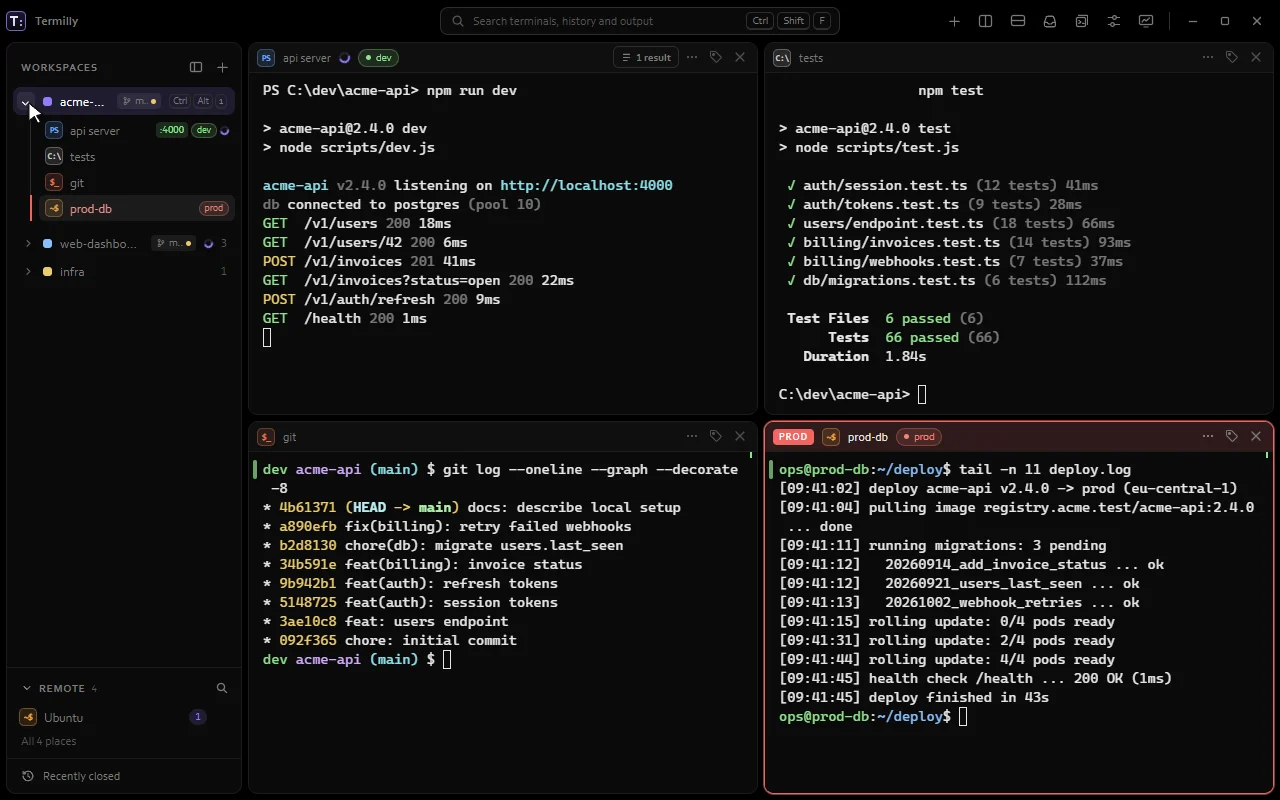
Keep each project's terminals in a workspace with its own name, colour and start folder. The others keep running out of sight.
How it works Termilly
Each feature links to the part of the docs that explains it.
No feature matches that. Try a shorter word, such as tab, agent or ssh.
Group terminals by project, lay them out your way, and pick up where you left off.
CtrlShiftN
Keep each project's terminals in a workspace with its own name, colour and start folder. The others keep running out of sight.
How it works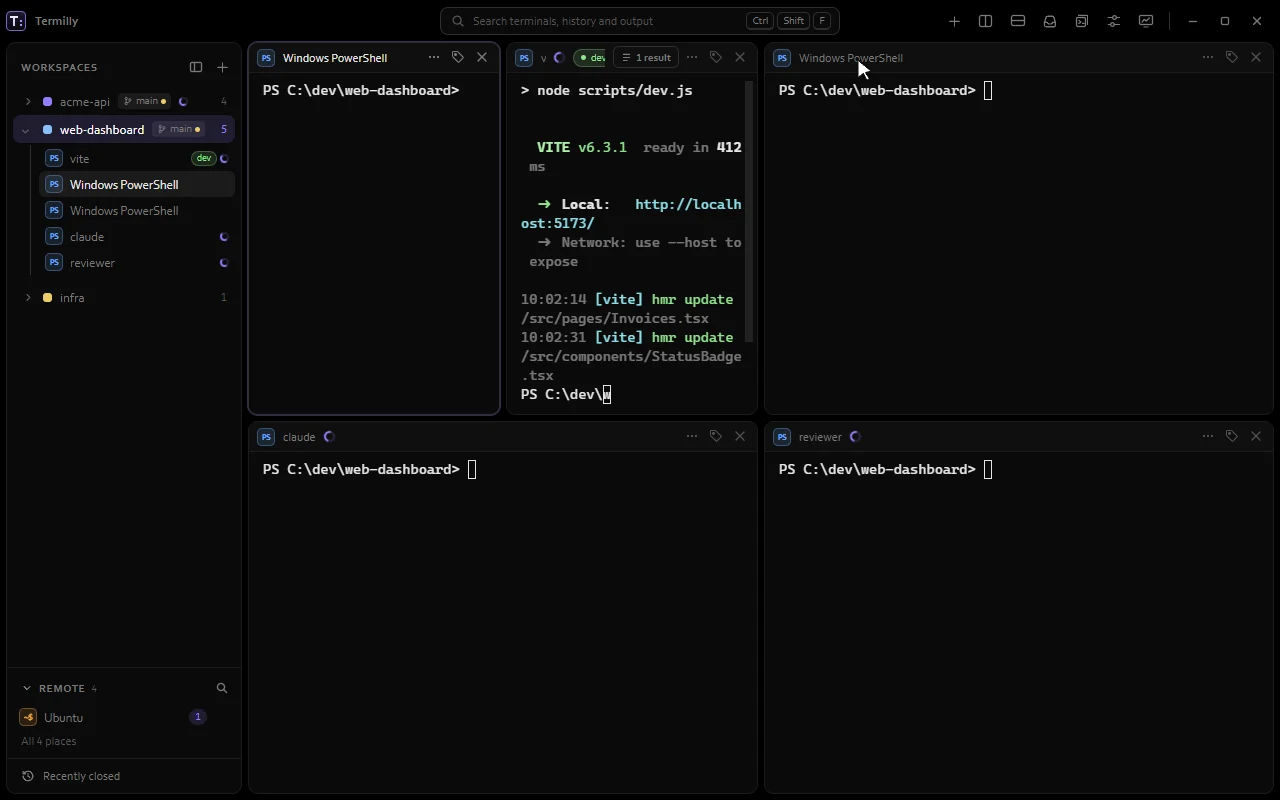
Drag a terminal by its header onto another. A guide shows where it will land: left, right, up, down or as a tab.
How it worksPick a name, colour and start folder. Start with a terminal in the shell you choose, or with nothing.
Jump to any of the first nine workspaces, or step to the next or previous one.
CtrlAlt1 to 9 or CtrlTab or CtrlShiftTabHow it works
Right-click a workspace to rename it, add a note, change its colour, export its layout and more. Double-click the name to rename.
Closing a workspace with terminals still open asks first. You can turn that off in Settings.
All your workspaces and terminals in one list, with tags, agent state and activity. Drag the edge to resize it.
CtrlShiftBHow it works
Expand another workspace in the sidebar to see its terminals without switching.
Split any terminal right or down as often as you like. Drag the divider to resize.
AltShift= and AltShift-How it works
Drop a terminal on the middle of another to share one spot as tabs. A tab whose agent is waiting for you is marked.
CtrlPageDown or CtrlPageUpHow it works
Move to the terminal on the left, right, above or below.
AltArrow keysHow it works
Turn all of a workspace's terminals into tabs in one go. Drag a tab out to split it off again.
Send a terminal to another workspace, or a new one. It keeps running.
Double-click a terminal's name to give it your own. Clear it to go back to the shell's name.
CtrlShiftRHow it works
Put coloured tags like prod, staging or dev on terminals. Search, broadcast, triggers, logging and production safety all use them.
Leave a note on a terminal, workspace or SSH host, like which database is read-only this week. Pin its first line to the header.
One fuzzy list of workspaces, recent folders, closed terminals and SSH hosts. Pick a folder to jump to its workspace or open a new one.
CtrlShiftOHow it works
Export a workspace's terminals, splits, shells, folders and start commands to a YAML file, and import it later. Secrets are never written.
Put a .termilly.yml in a project and Termilly offers its layout and snippets when you open it. Share it with your team in git.
Reopen a closed terminal and it comes back in its workspace, with its name, tags, folder and old output.
Termilly brings your terminals back in their folders with their last output, and running Claude Code sessions pick up again.
Your terminals survive closing, crashing or updating the window. The next window picks them up where they were.
A floating shell above your layout for a quick command. Hiding it keeps it running.
CtrlShift`How it works
Press a shortcut in any app and Termilly slides down from the top of the screen, and away again. Windows only.
Open a folder in Termilly from the Explorer menu on Windows, or with termilly followed by a folder.
Ports a terminal's programs listen on, like :3000, show on its row. Click one to open it in your browser.
A spinner while a command runs, a dot when a hidden terminal prints something, and a red border on errors.
Every shell, server, container and serial port you use, one click away.
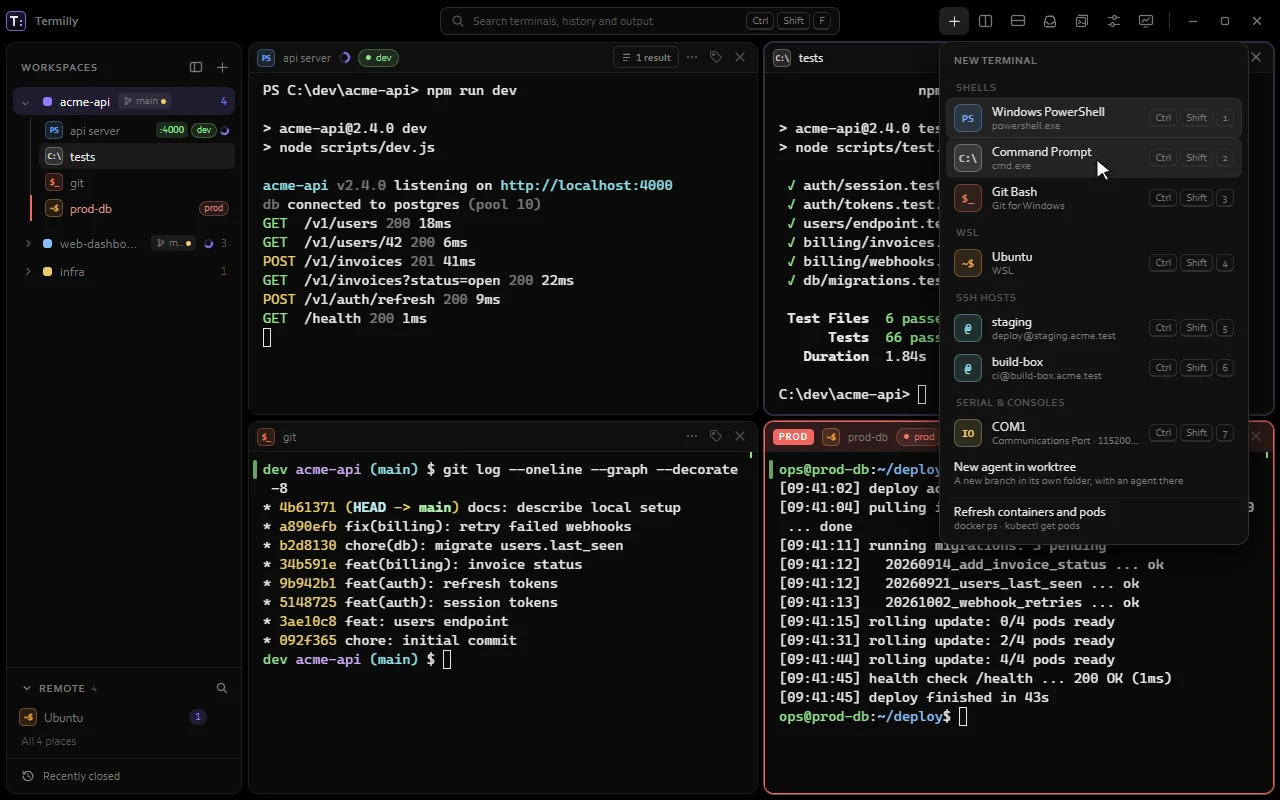
PowerShell, Command Prompt, Git Bash and WSL on Windows, and your installed shells on Linux, ready in the + menu.
How it worksOpen a terminal in your default shell, or in any of the first nine shells by number.
CtrlShiftT or CtrlShift1 to 9How it works
Turn any command into a profile with its own folder, environment and tags, like docker exec -it or kubectl exec -it.
Hosts in ~/.ssh/config show up on their own and open with OpenSSH, so your keys and jump hosts just work.
Save connections with host, user, port and jump hosts. Sign in with ssh-agent, a key file, a security key, a stored password or 1Password.
Bring over sessions from PuTTY, MobaXterm, SecureCRT and mRemoteNG. Passwords are never copied.
Save local, remote and SOCKS forwards through any SSH host, and start or stop them from Settings.
If the network drops or your PC sleeps, SSH terminals reconnect by themselves and go back to the folder they were in.
A dead SSH connection is noticed in under a minute instead of hanging.
Browse the remote files of the SSH terminal you're in, following its folder. Drop files to upload, or download, rename and delete.
CtrlShiftLHow it works
Each tmux window becomes a workspace and each pane a terminal, with Termilly's search and history. Closing detaches and tmux keeps running.
Running Docker containers and Kubernetes pods show up in the + menu. Click one to open a shell inside.
Open a terminal on a COM port with its own settings. An unplugged adapter is retried until it's back, and each port can log to a file.
Reach console servers and devices over raw TCP or Telnet.
Send Break, switch to hex view, or change what Enter sends.
All the places you can open a terminal, from SSH hosts to serial ports, in the sidebar. Pin the ones you use most.
Ctrl+C copies a selection, or stops the command when nothing is selected. Ctrl+V pastes.
CtrlC or CtrlVHow it works
Drop files on a terminal and their paths are typed in, quoted the way that shell expects.
A shell that fails stays on screen with its exit code. Press any key to start it again.
Run many Claude Code sessions at once and always know which one needs you.
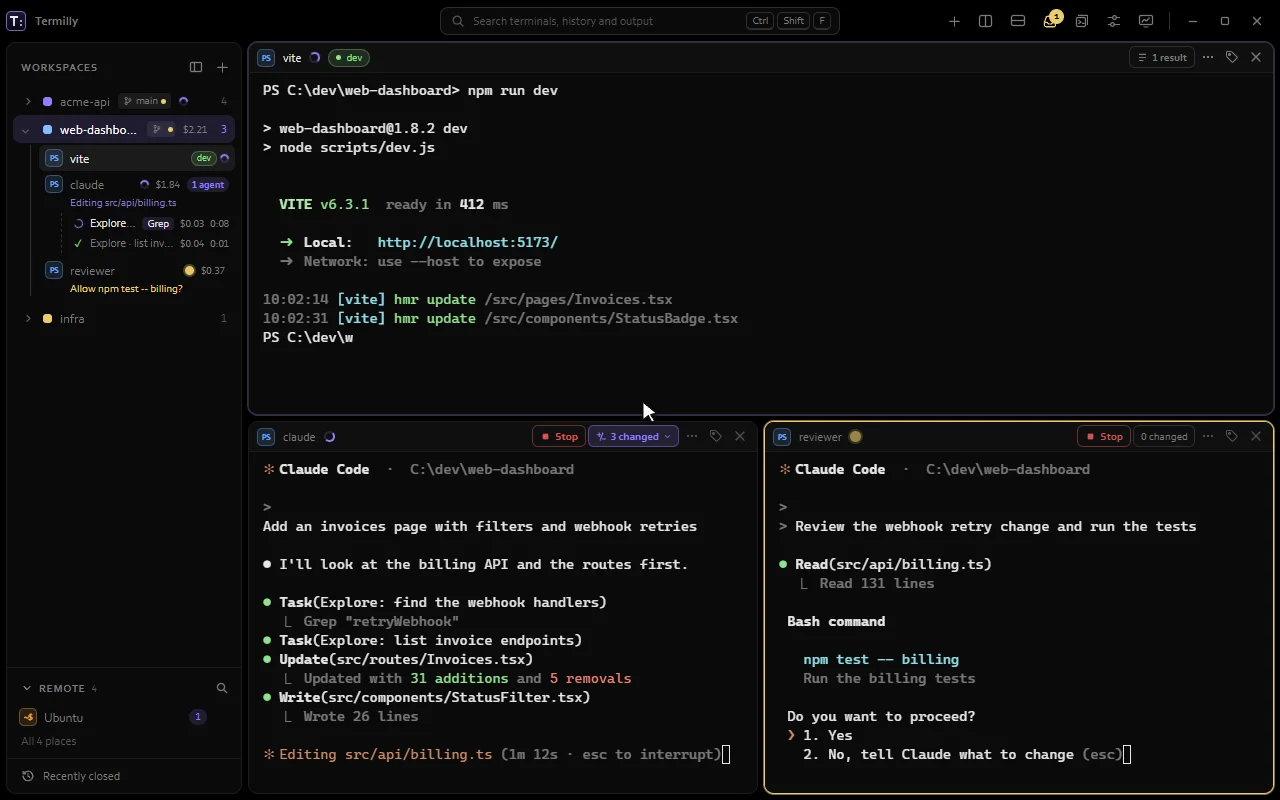
Claude Code tells Termilly whether it's working, needs you, finished or failed. Your own hooks stay as they are.
How it works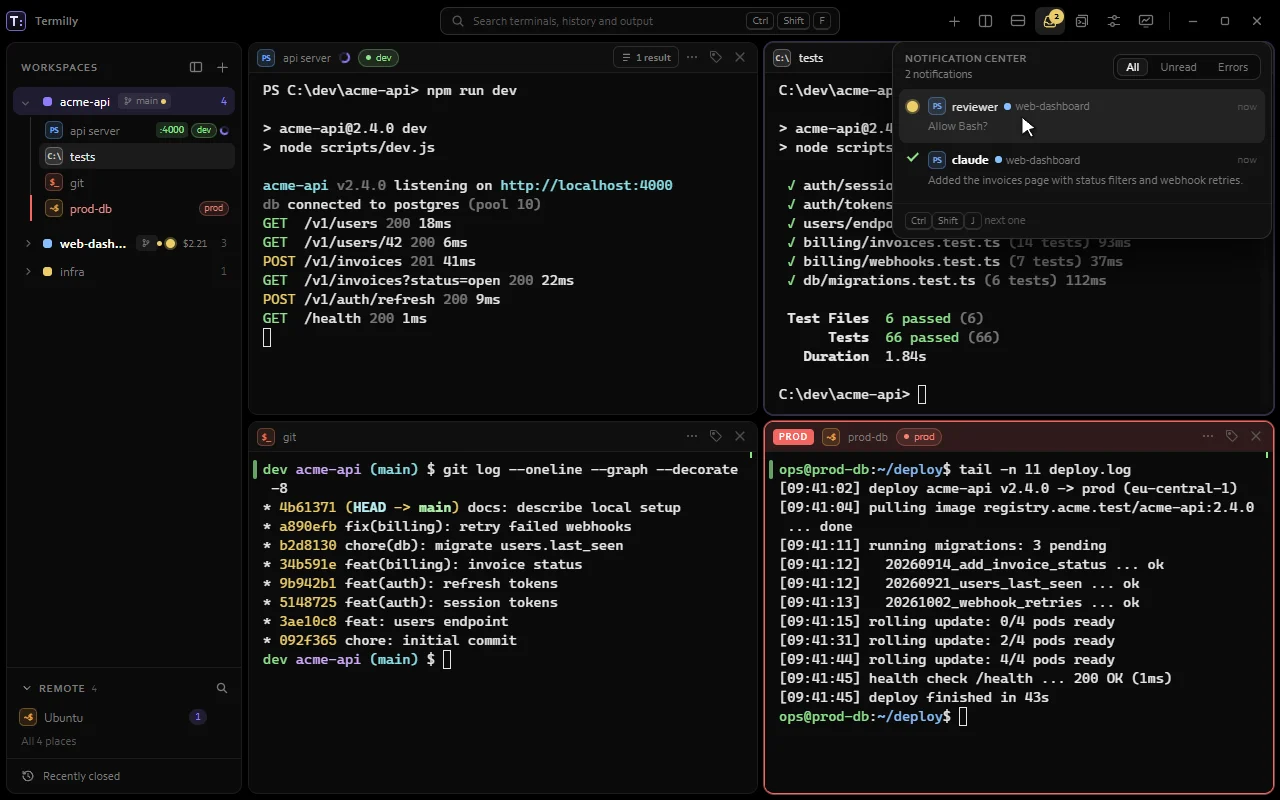
CtrlShiftA
Every agent waiting for you, failed or finished, most urgent first, with how long each has waited.
How it works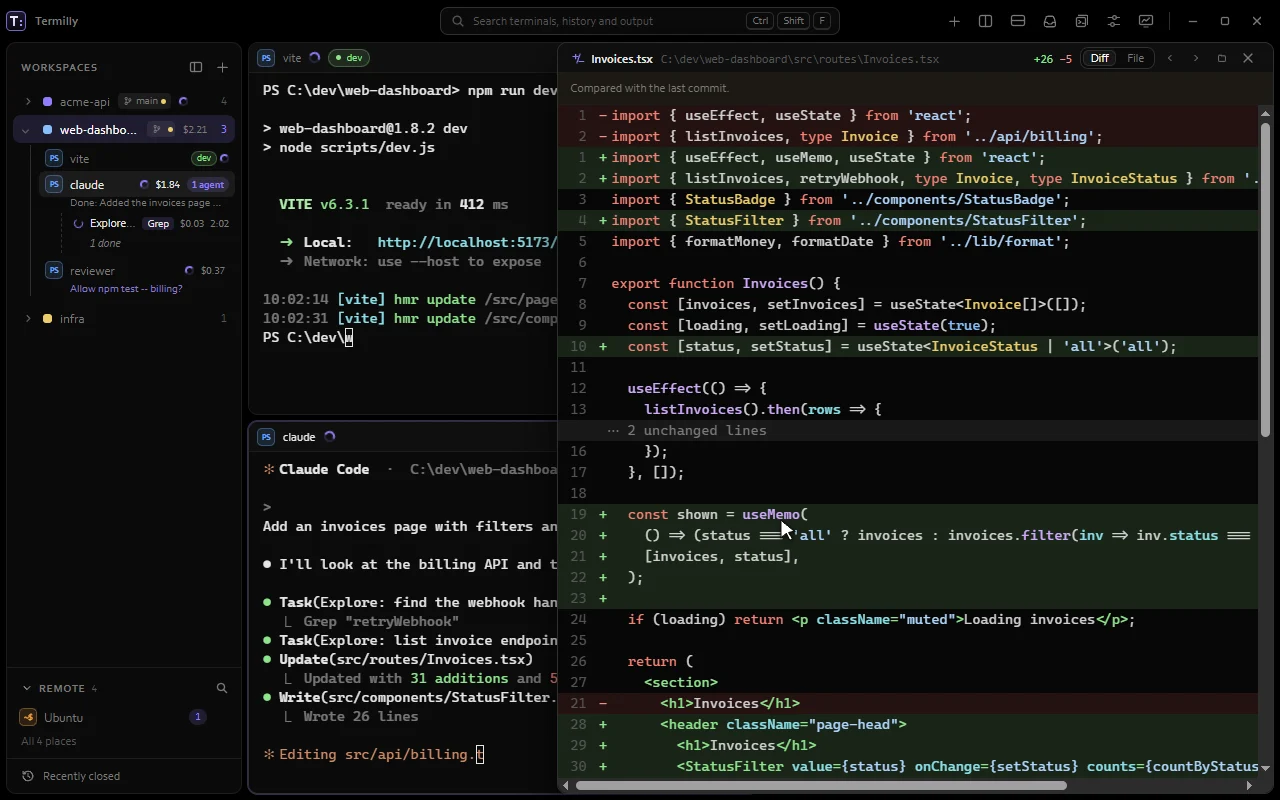
CtrlShiftD
See every edit Claude Code makes, with colours, as a diff or the whole file. Open it as a pane, side panel or window.
How it worksOne dim line under each agent in the sidebar shows what it's doing or waiting for.
One key takes you to the next agent waiting for an answer, in any workspace.
CtrlShiftJHow it works
Jump to the next agent that needs you from any app. Turn it on in Settings. Windows only.
CtrlAltJHow it works
Get notified when an agent you can't see needs you, fails or finishes. Click the notification to go straight there.
Interrupt Claude Code or Codex with one click, or stop every agent in a workspace at once.
Claude Code's subagents show under their terminal while they run, with what each is doing and for how long.
A small chip shows the model, how full the context is and tokens used. Click it for more.
See your Claude plan's 5-hour and weekly limits and when they reset.
See what each agent has cost, plus totals for today and this week, in dollars or tokens. On Pro and Max it's API value, not a bill.
Too many sessions open? Idle ones in other workspaces go to sleep and resume the same conversation when you return.
Start an agent on a new branch in its own git worktree, so its work stays apart from yours.
See if the branch is merged and what's uncommitted, then remove the worktree and, if you like, the branch.
Every file Claude changed in a terminal, listed on its header. Step through them with N and P.
Wrap long lines in the change preview and Git diffs. Termilly remembers your choice.
Ctrl+click any file path in a terminal to open it in the change preview.
Track changes by copying files before and after each edit, or compare against git with no copies. Shell edits are caught too.
Pull requests, issues, dev-server addresses, commits and pushes your commands produced, gathered in one list on the header.
Paste a command's output into an agent's prompt, labelled and ready for your question.
Agents without hooks, like Codex or Gemini CLI, still show as waiting when they ring the bell or send a notification.
A Claude Code session that was running when Termilly closed picks up again in its folder, even over SSH.
Record a terminal whenever its agent starts working, so you can see later what it did.
Check your terminals and waiting agents from your phone on the same Wi-Fi. If you allow it, approve or reject prompts. Off by default.
Changes, history and branches, right next to your terminals.
CtrlShiftG
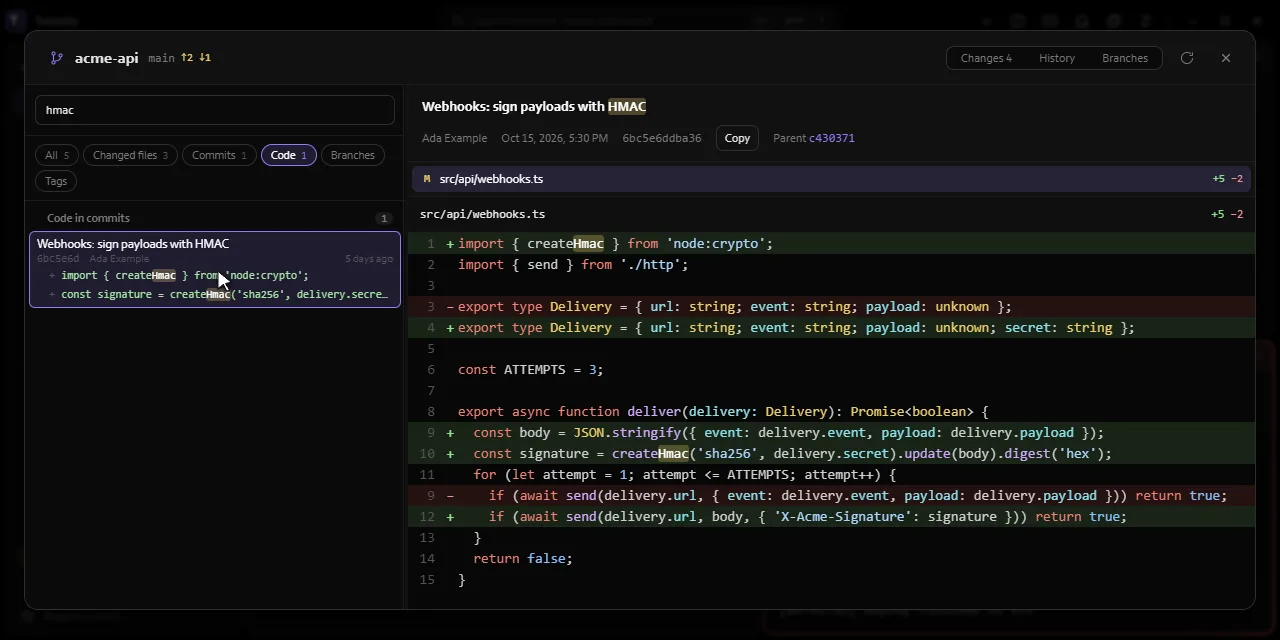
Your changes, history and branches with every diff, in one window. Open it from a branch in the sidebar.
How it worksOne box searches changed files, commit messages, authors, hashes, diffs, branches and tags.
Right-click a file to stage, unstage, restore or ignore it, and switch branches from the list. Anything destructive asks first.
Changed images show as pictures, before and after side by side.
Every file Claude changed, as a tree that updates while it works.
Every workspace shows its branch, uncommitted changes and ahead/behind right in the sidebar. Click it to open the Git window.
Find any command, output or terminal again, and save the ones you repeat.
CtrlShiftF
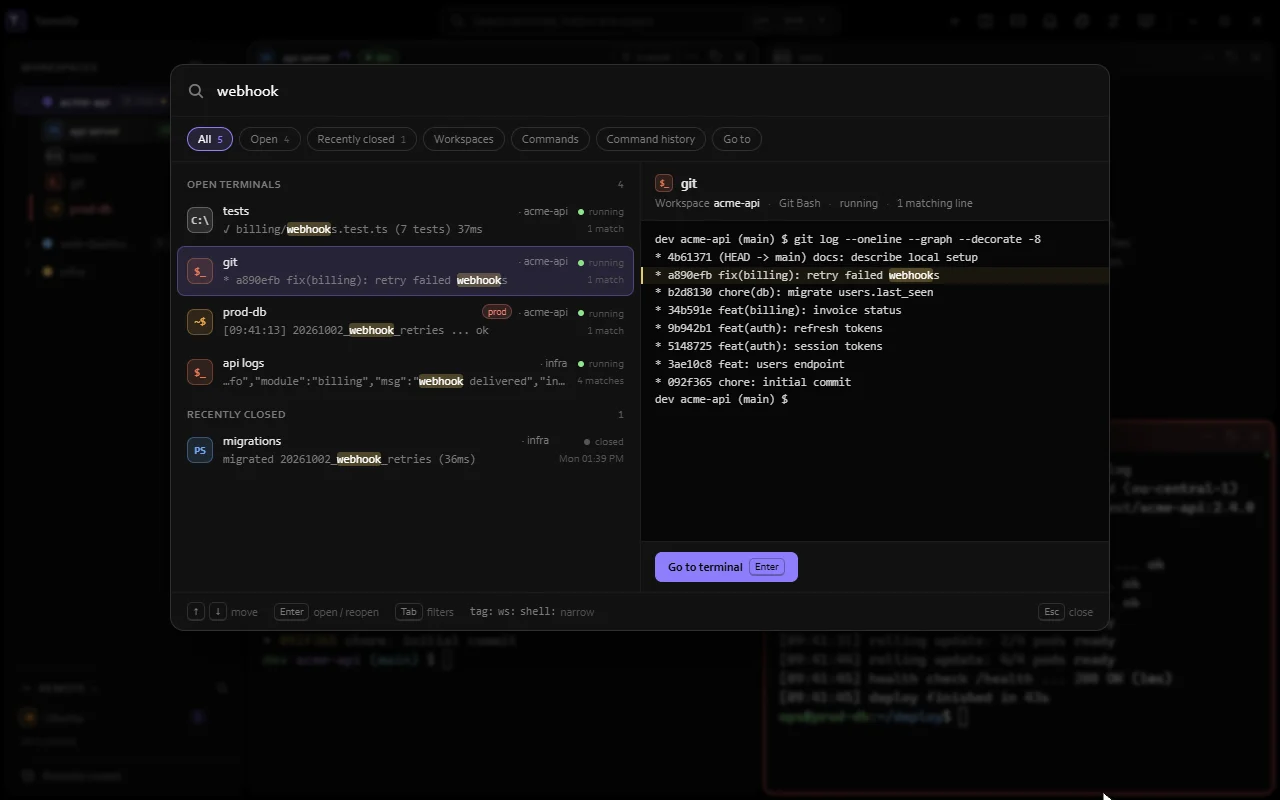
Search open and closed terminals, workspaces and commands by name, tag, note or output. Narrow it with tag:, ws: and shell:.
How it works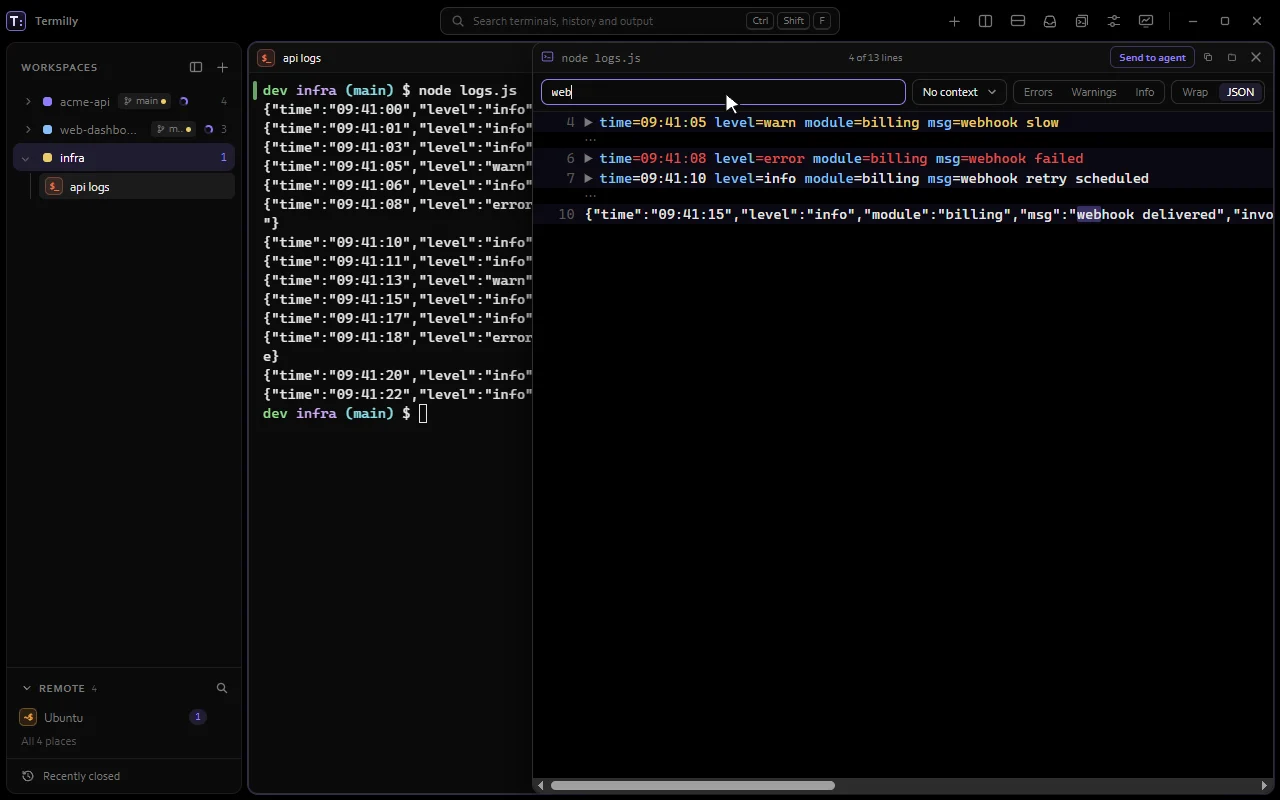
Read long output in a panel that filters, follows, wraps and pretty-prints JSON. Copy it or save it to a file.
How it works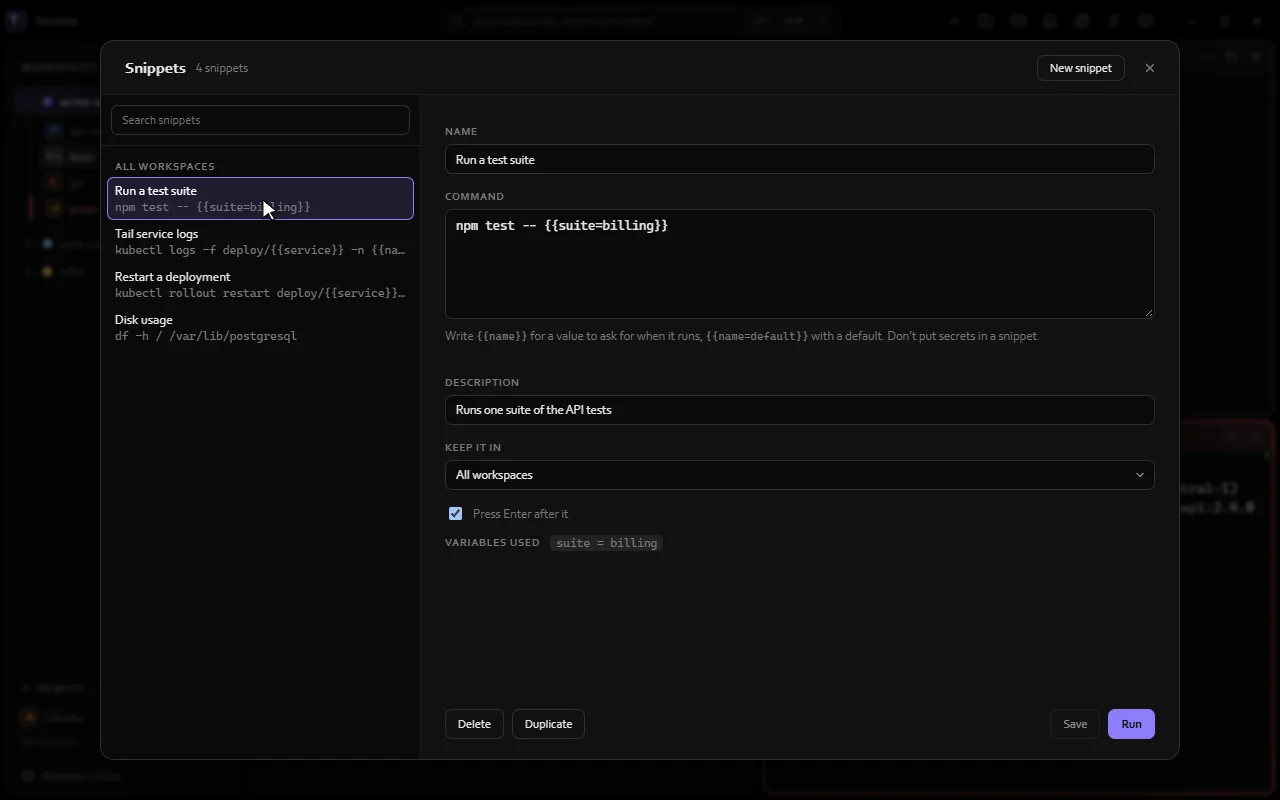
Saved commands with {{placeholders}}, run in one terminal or many at once. The form remembers your last values.
How it works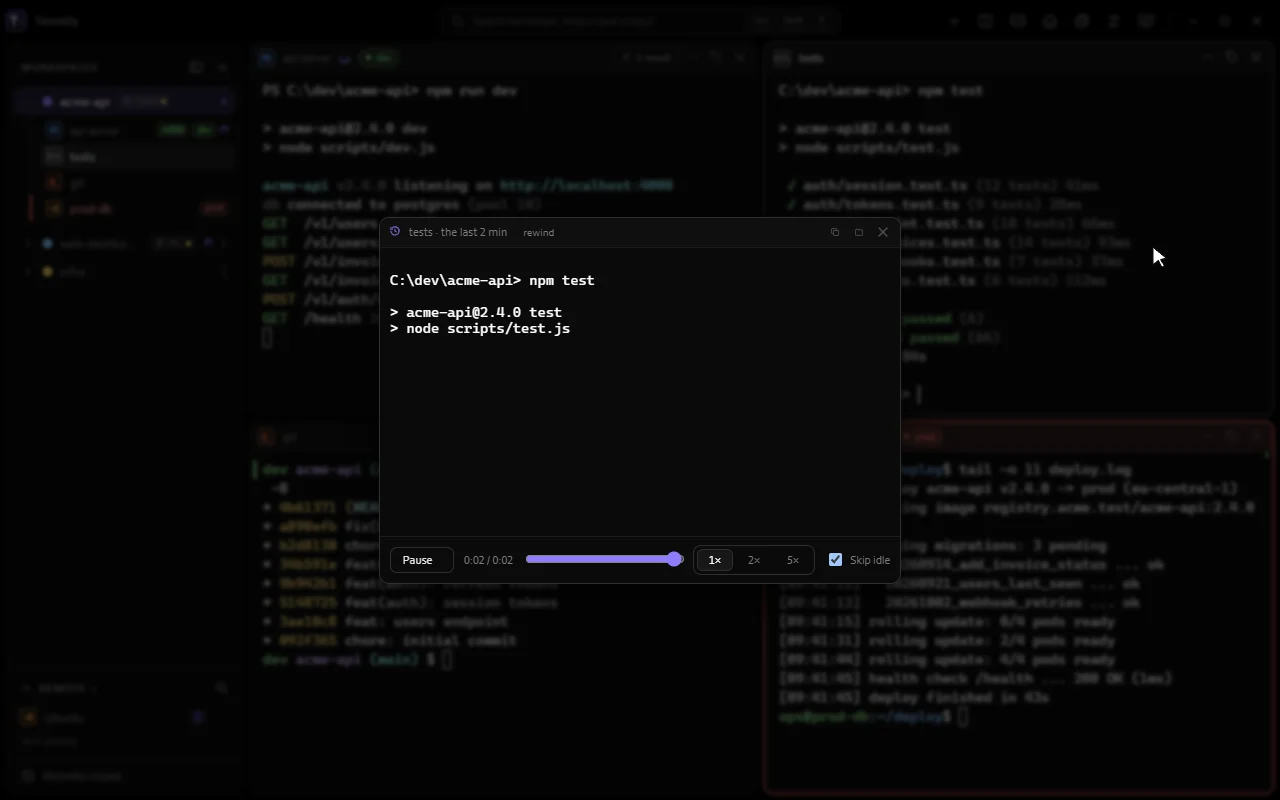
Scrub back through the last few minutes of a terminal to see how the screen looked. Kept in memory only.
How it worksEvery command you ran, with exit code, duration and folder. Press Enter to put one back at the prompt.
CtrlShiftHHow it works
Each command gets a green or red mark on the scrollbar. Hover for its exit code, and jump from prompt to prompt.
CtrlShiftUp or CtrlShiftDownHow it works
Termilly knows where each command starts and ends in PowerShell and bash. Your prompt and profile stay as they are.
Copy just what the last command printed, without the prompt.
Every link, path and hash on screen gets a short label. Type it to open or copy it.
CtrlShiftEHow it works
Ctrl+click web addresses and links programs print to open them.
All your snippets in one searchable window, to edit, duplicate, delete or run.
Turn the last command you ran into a snippet in one click.
Type snippet: at the prompt to pick one from a list. Nothing you type there reaches the shell.
Record a terminal to an asciicast file and play it back with a timeline of commands. Your keystrokes are never saved.
Log a terminal's output to a plain file for audits and tickets, with optional timestamps and secrets redacted.
Lines your triggers catch are kept in one list, so no error scrolls past unseen.
Termilly knows which terminals are on production and asks before anything risky reaches them.
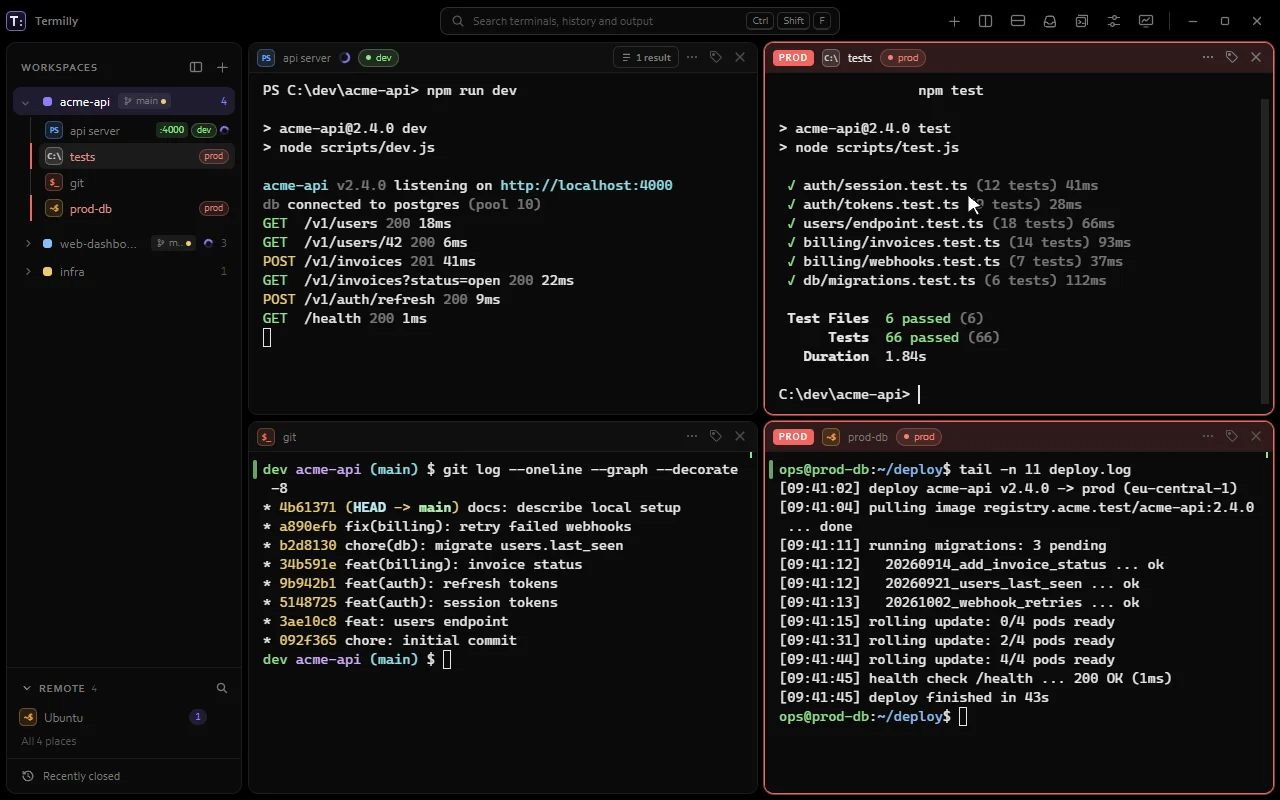
Terminals on production or staging get a coloured frame and a PROD or STAGING chip, by tag or by host name.
How it worksChoose which host names count as production or staging, with * as a wildcard.
Choose when pasting into production asks first. Broadcasts, snippets and scripts always ask.
A faint wash of the environment's colour over the whole terminal.
Pasting several lines shows a preview first, so nothing runs by accident.
Choose which terminals agents may read and type into. Remote, production and sensitive terminals are off by default.
A terminal's header shows when an agent reads or types into it, and every access is logged.
What agents read from other terminals has secrets redacted and is marked as output, never instructions.
Programs like neovim and tmux can copy to your clipboard if you allow it, but can never read it.
Terminals tagged prod join a broadcast only after you confirm.
Scripts, agents and plugins can drive Termilly, within the limits you set.
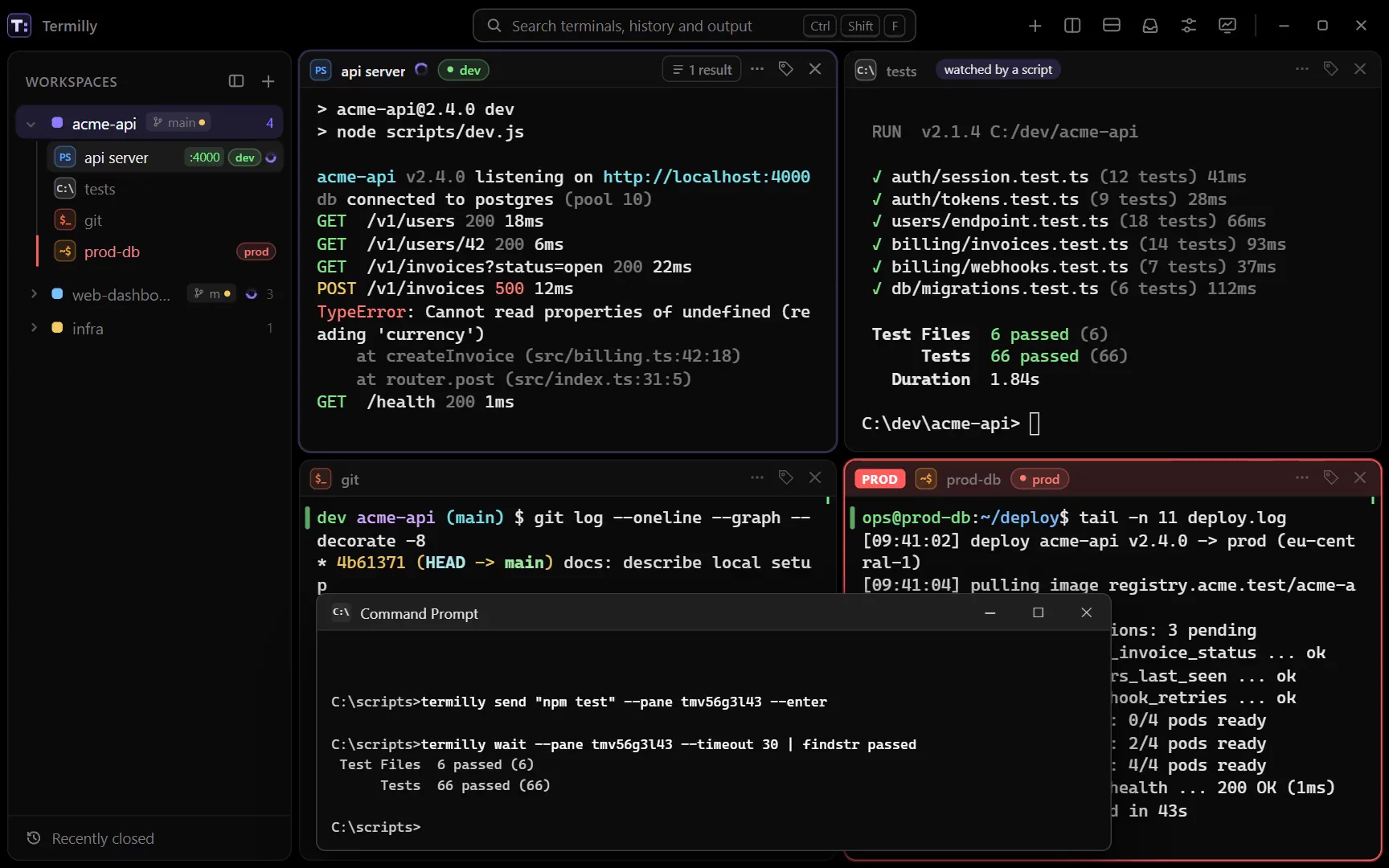
From any terminal, list and open terminals, type into them, run snippets and search history.
How it works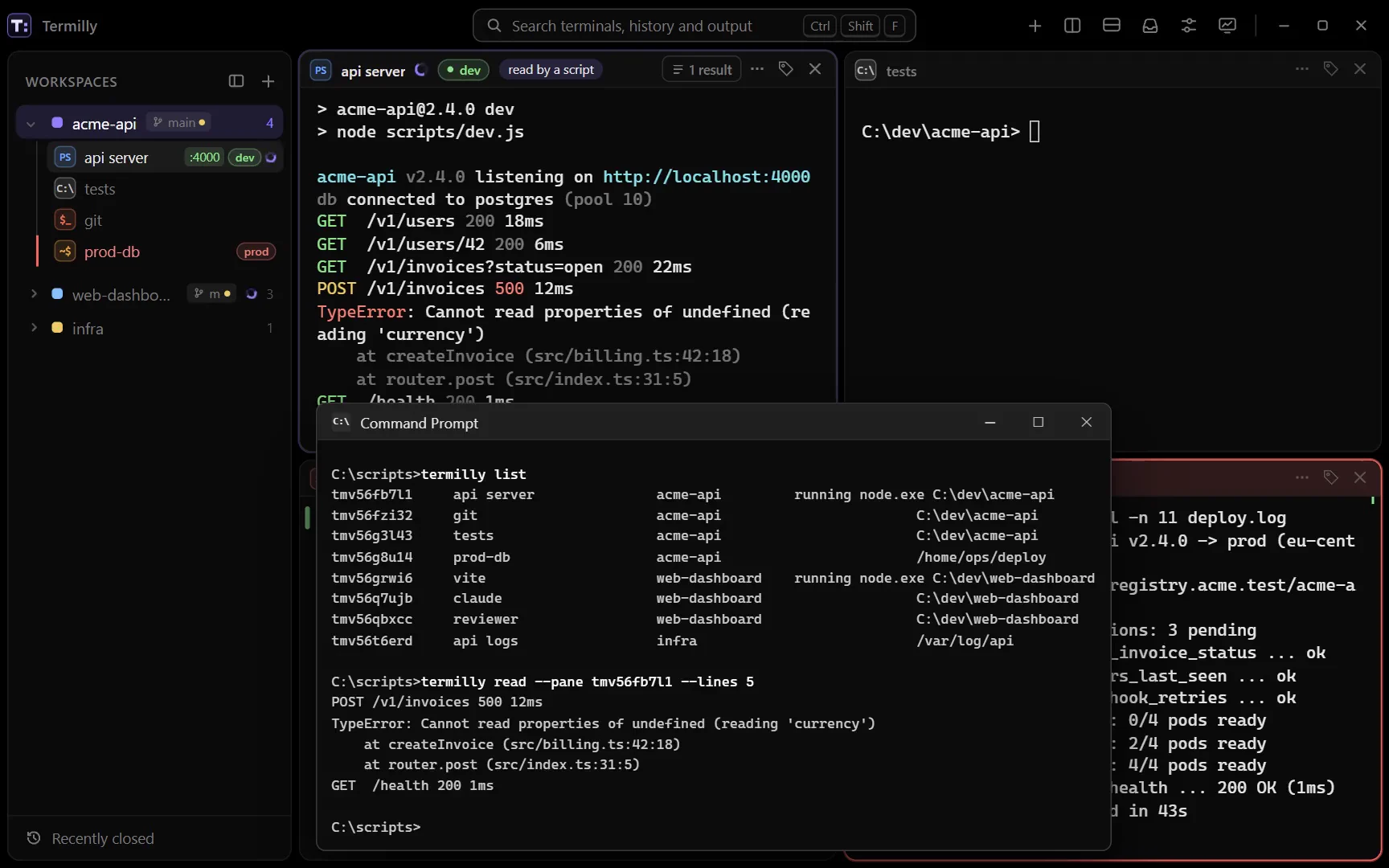
Read another terminal's last output, or wait until its command finishes or a line appears, like a server saying it's ready.
How it works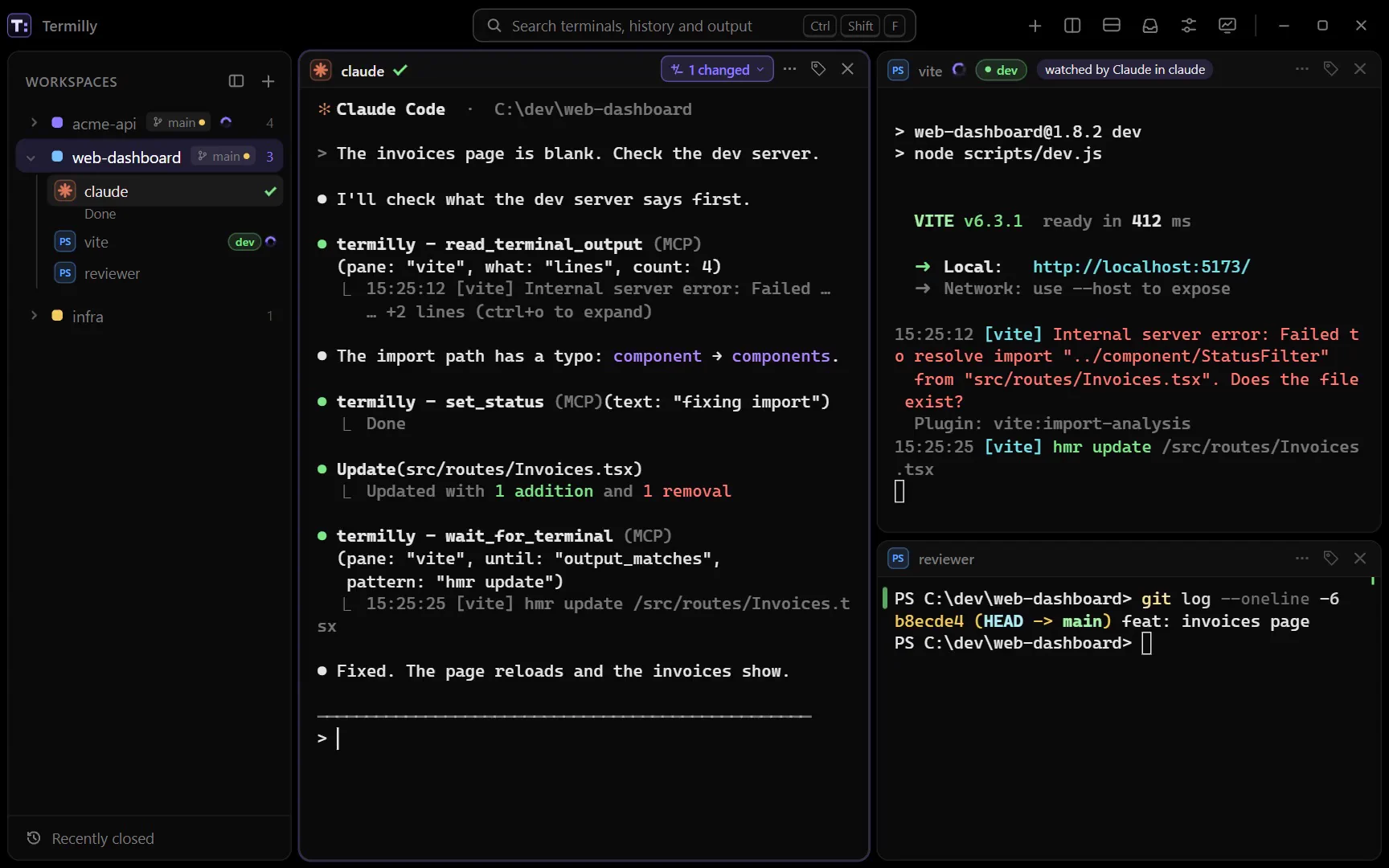
Let agents see your terminals, read their output and use your snippets. Typing and opening only if you allow it.
How it worksOff by default. Turn it on and choose which terminals scripts and agents may type into.
Copy any terminal's id from its menu, to use with the termilly command or MCP server.
Type once into every terminal in a workspace, every terminal with a tag, or the ones you pick.
CtrlShiftIHow it works
Write multi-line text, then send it to every broadcast terminal at once.
Watch output for patterns and highlight, capture or notify on a match. Start from ready-made ones for errors and builds.
Get one alert when a terminal's command finishes, goes quiet, or prints something.
A layout can give each terminal a command to run when it starts.
Add colour themes and palette commands with plugins. Plugin scripts run sandboxed, with no network.
Colours, fonts and terminal details, changed instantly.
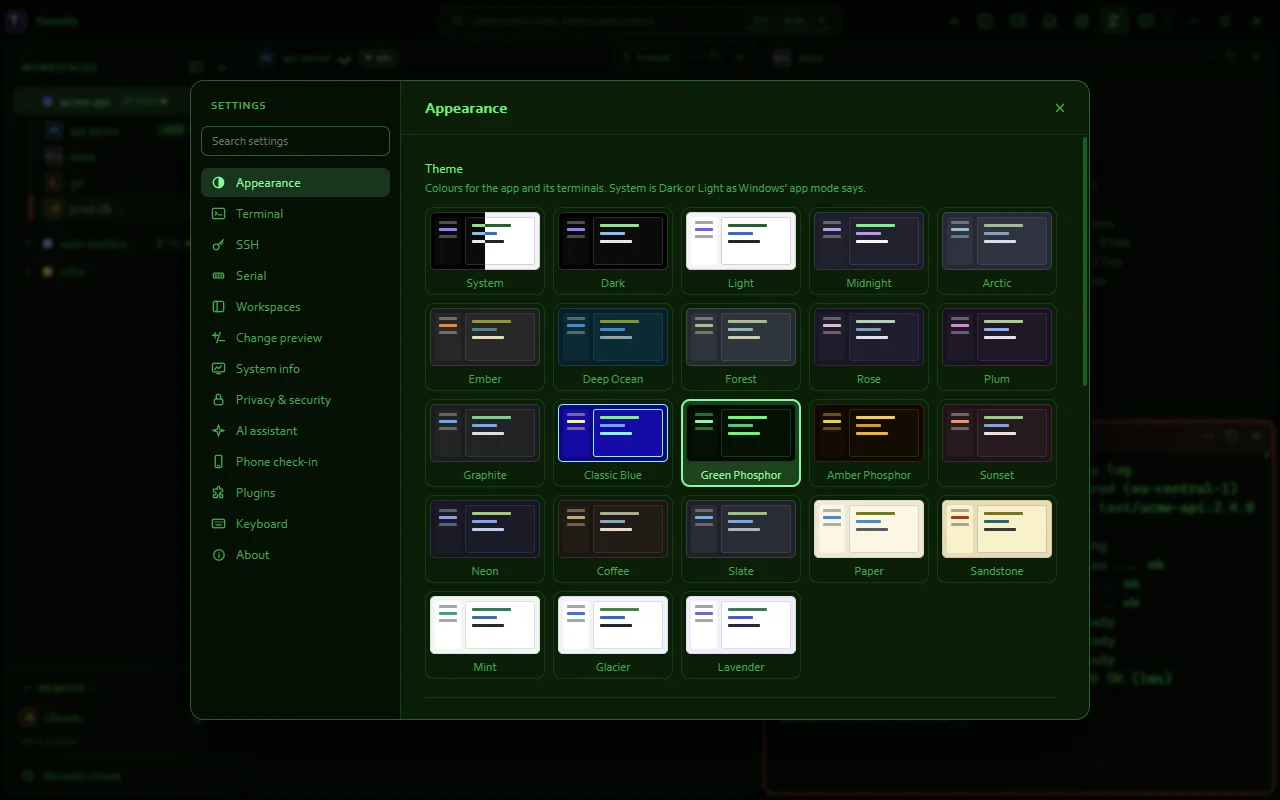
Switch theme, or between light and dark, from the command palette.
Pick any monospace font for terminals and any installed font for the rest of the app.
Make terminal text bigger or smaller with the keyboard, the mouse wheel or a slider.
Ctrl or Ctrl- or Ctrl0 or CtrlWheelHow it works
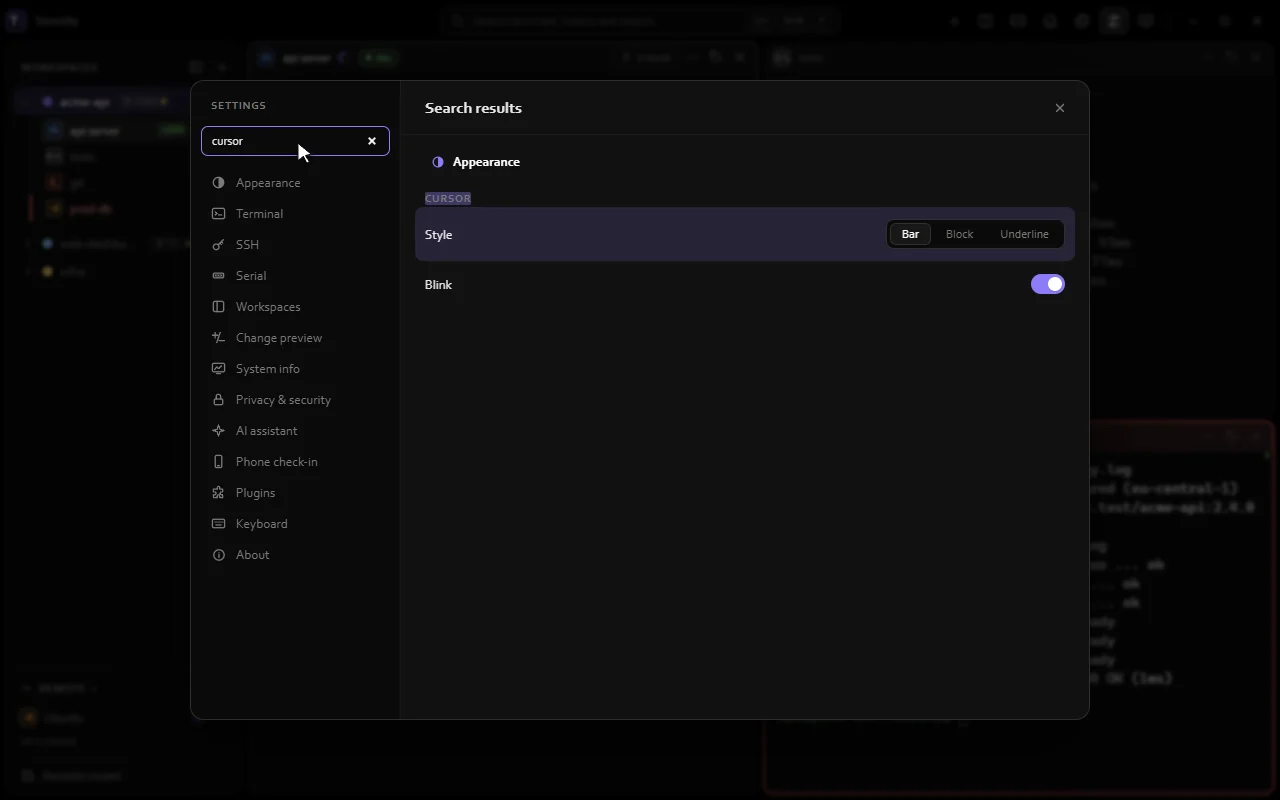
Pick a line height, a bar, block or underline cursor, and whether it blinks.
Choose crisp greyscale or ClearType text. Windows only.
Use a theme plugin's colours in your terminals, or keep the app theme's.
Images programs print with Sixel or iTerm2's protocol show right in the terminal.
Wide emoji, progress reporting, terminal notifications and the bell all work as programs expect.
One slim bar with your workspace, search, splits, notifications, snippets and settings, the same on Windows and Linux.
Everything is encrypted on your PC, and nothing leaves it unless you say so.
Your workspaces, history and saved output are encrypted on your PC, unlocked by your Windows account or, on Linux, a key file only you can read.
A code that unlocks your history if your Windows password is reset or the Linux key file is lost.
History that can't be unlocked is set aside until you enter its recovery code.
Choose how long closed terminals are kept, from 7 days to a year, or clear everything.
Tokens, keys and passwords can be hidden from history, logs and recordings. What agents and phones see is always redacted.
SSH passwords and your AI key live in the system's credential store, never in Termilly's files.
Share command history through a folder you already sync, like OneDrive or Dropbox. It's encrypted with a code only you know.
Termilly tells you when a new version is out. Nothing is downloaded or installed until you click.
The rest of the toolbox.
Ctrl or
Changes apply at once. Search every setting, or open one straight from the palette.
How it worksEvery command, setting and snippet in one list, each with its shortcut.
Optional. Ask about the terminal you're in, using your own Anthropic key or a local model. It only does what you allow.
CtrlShiftKHow it works
Every shortcut, grouped and listed in Settings.
A short walk past the things you'll use every day, offered on first start.
See how much memory the app and each terminal use right now.
Terminals in other workspaces can keep fewer lines to save memory.
The same app on Windows 10 and 11, and on Linux with a .deb package.

Windows 10 (version 1903 or later) and Windows 11, 64-bit, or Debian and Ubuntu.
WindowsFull installer
About 270 MB. Carries .NET and WebView2, so it works without an internet connection.
WindowsOnline installer
About 10 MB. Downloads .NET and WebView2 from Microsoft while it installs.
LinuxDebian and Ubuntu package
About 1 MB. apt installs .NET and WebKitGTK with it.
WindowsPowerShell
irm https://termilly.com/install.ps1 | iex
WindowsCommand Prompt
curl.exe -fsSLo install.cmd https://termilly.com/install.cmd && .\install.cmd && del install.cmd
LinuxTerminal
curl -fsSL https://termilly.com/install.sh | sh